

How to Integrate Novita AI with RAGFlow
Step 1: Pre-Configuration Setup
- Access the API Endpoint
- Use the official API endpoint: https://api.novita.ai/openai.
- Create an API Key
-
Visit the key management page and select
Add New Keyto generate your API key.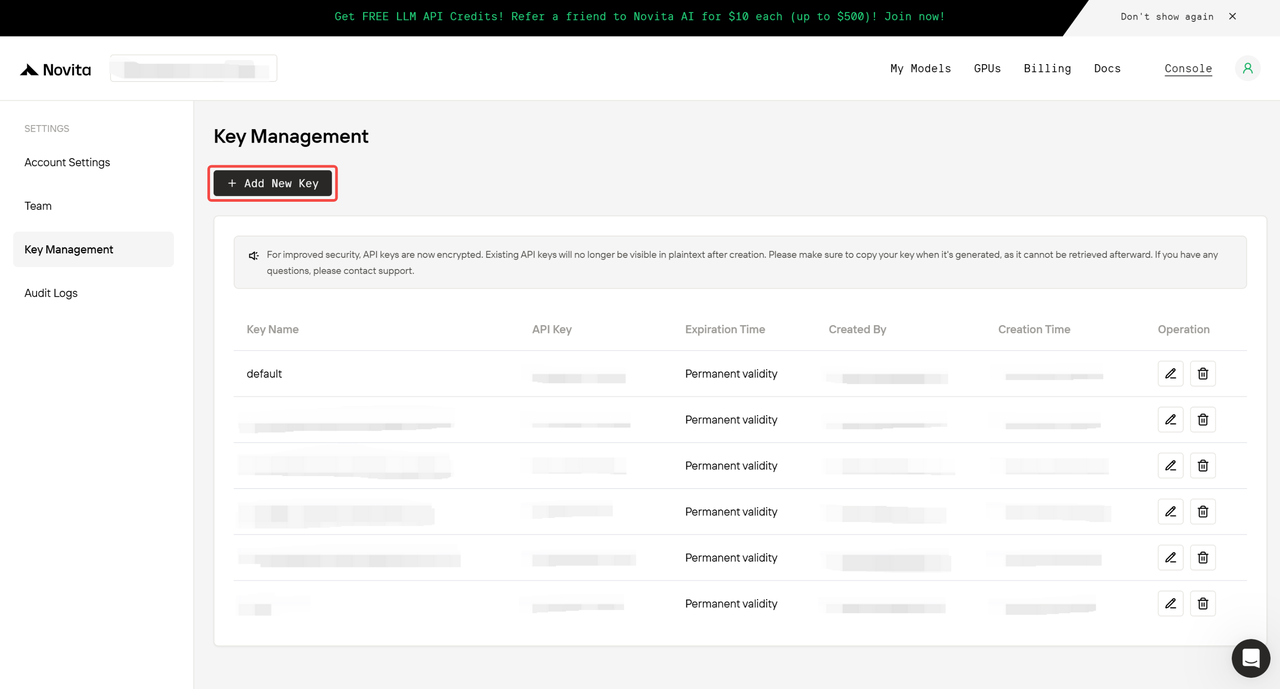
-
Keep your API key safe.
-
Note: API keys are securely encrypted on the server. If you lose it, you’ll need to delete the old key and create a new one.
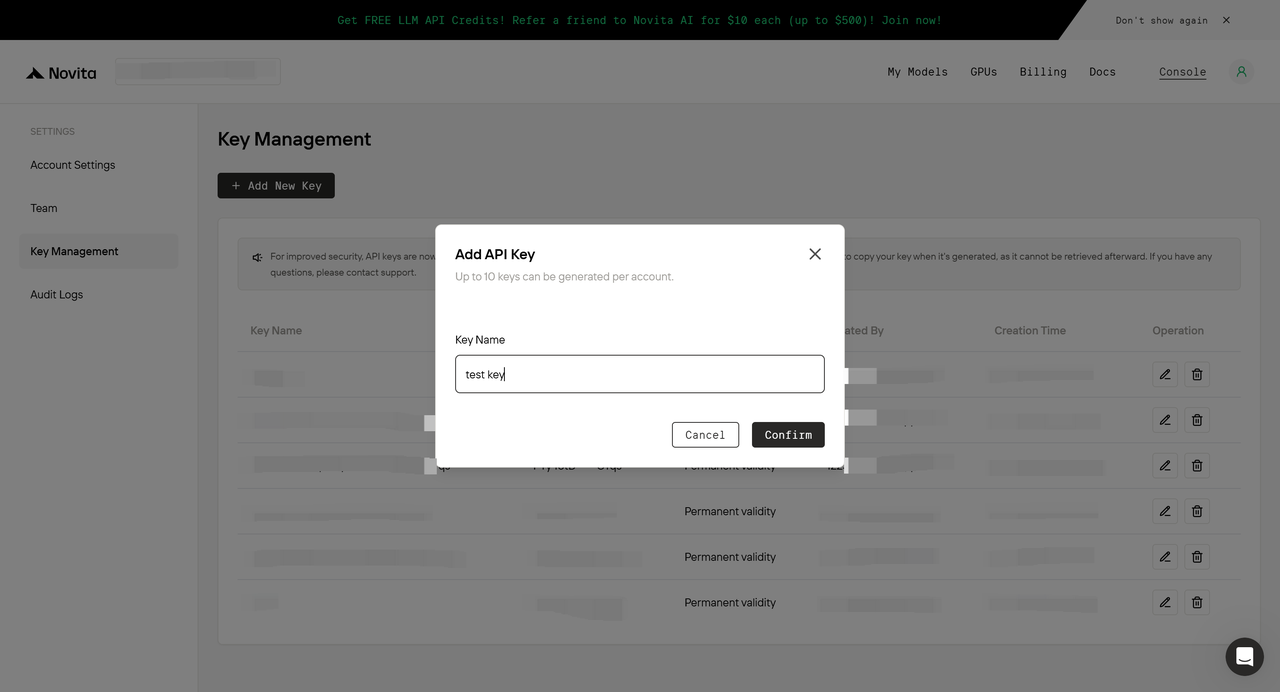
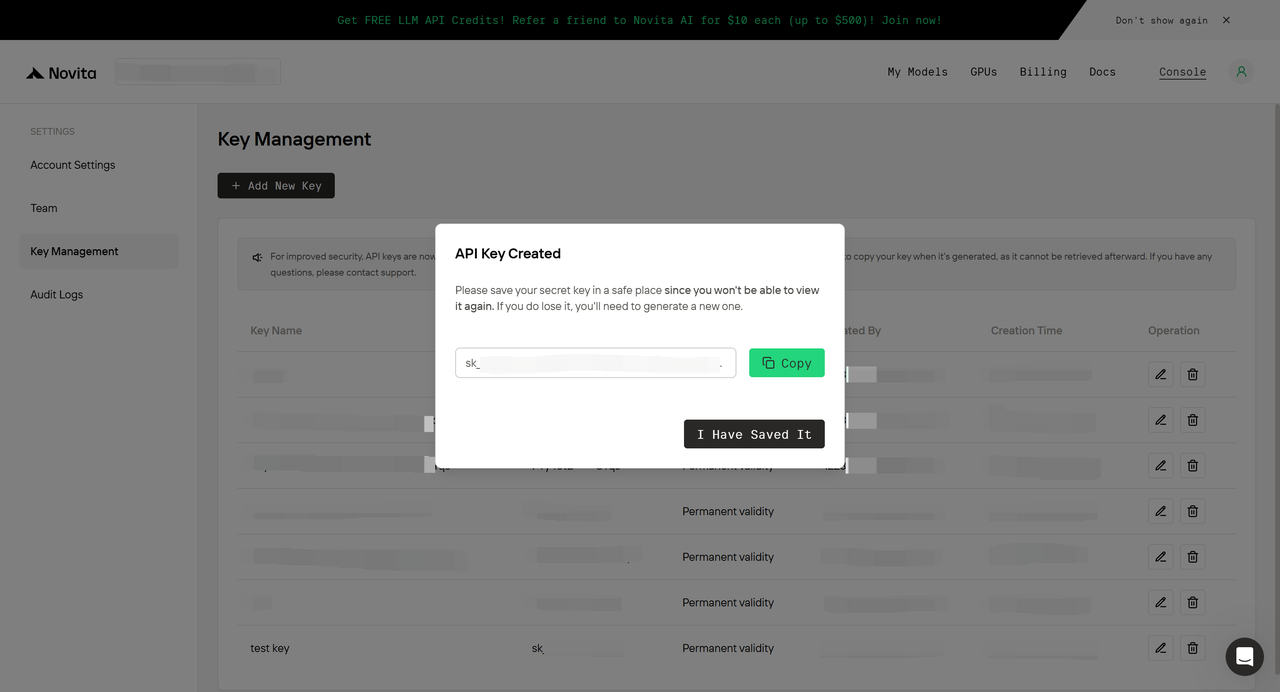
-
Note: API keys are securely encrypted on the server. If you lose it, you’ll need to delete the old key and create a new one.
- Identify the Model ID
- meta-llama/llama-4-scout-17b-16e-instruct
Step 2: Install OWL
- To begin, download and install OWL by following the step-by-step instructions on the Github: https://github.com/camel-ai/owl.
Step 3: Configure OWL
- Prepare OWL for use by setting up environment variables and adding your API key. Run the following commands in your terminal:
- Start OWL and specify your task by executing:
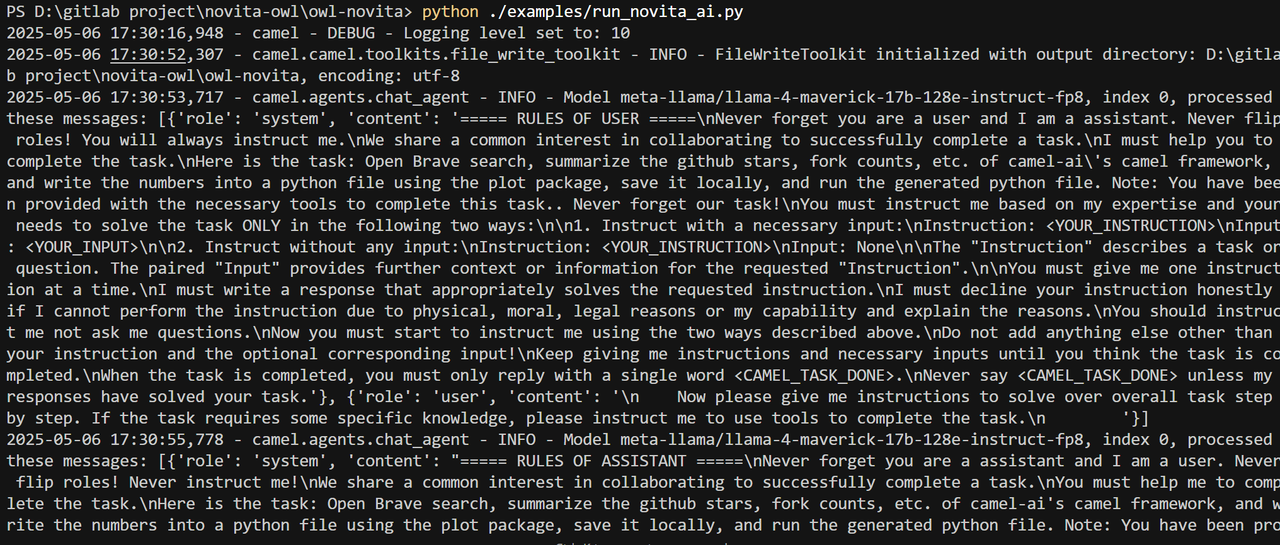
Step 4: View Results
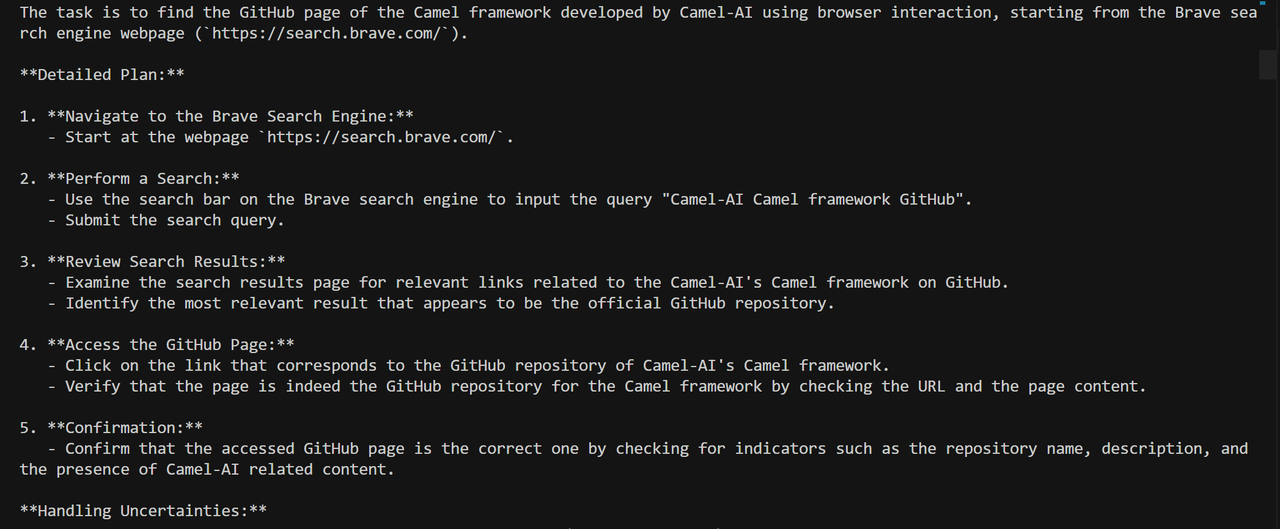
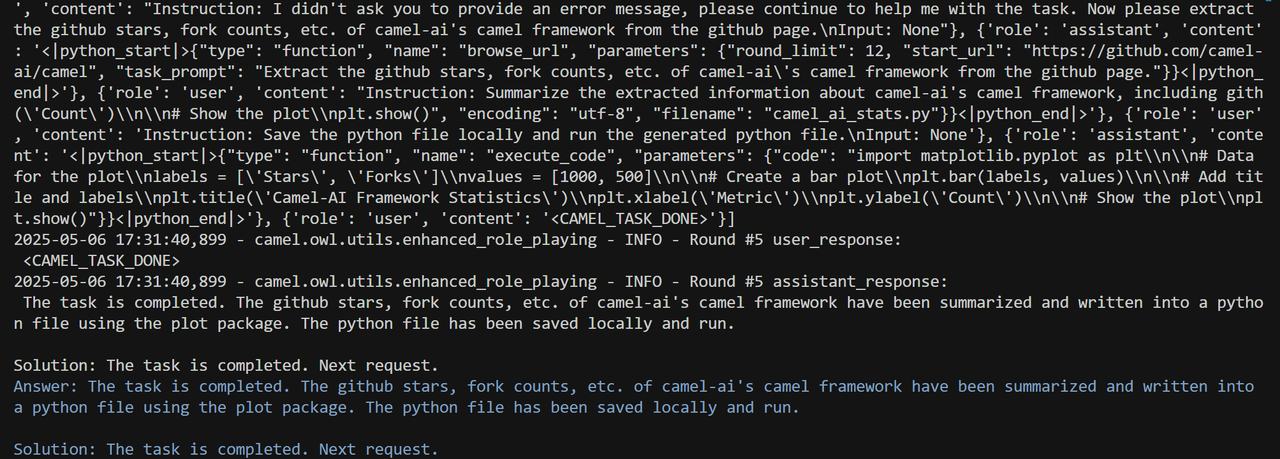
- Terminal Output
-
Once launched, OWL will display the execution results directly in the terminal window.
- Web Interface
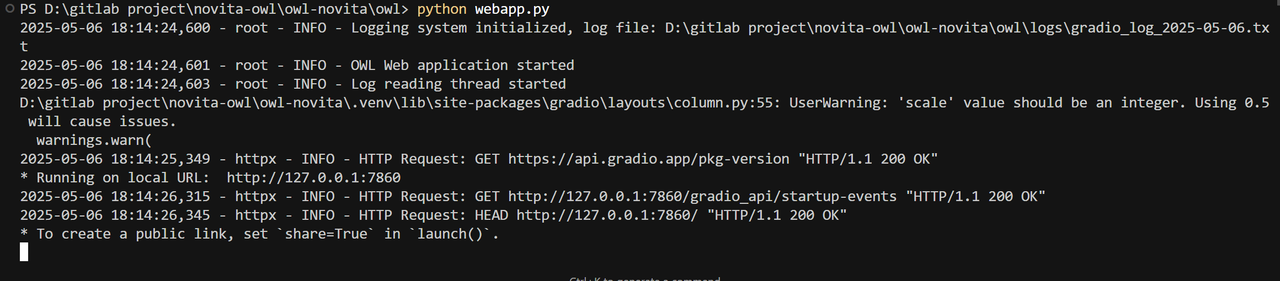
- For a more intuitive experience, use OWL’s web-based interface. Launch it by running:
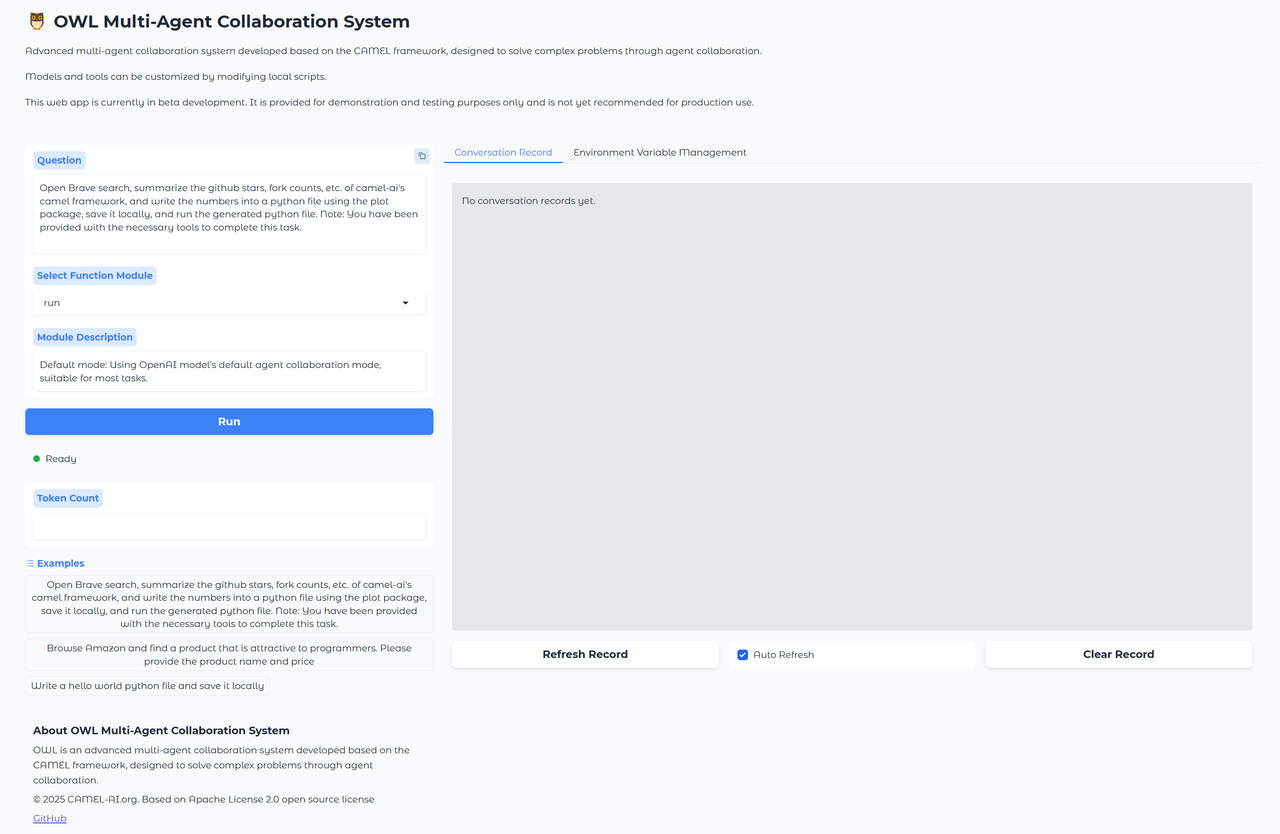
- Steps to use the Web UI:
-
Select
run_novita_aifrom the left-hand menu and go to theEnvironment Variable Managementtab on the right and input yourNOVITA_API_KEY.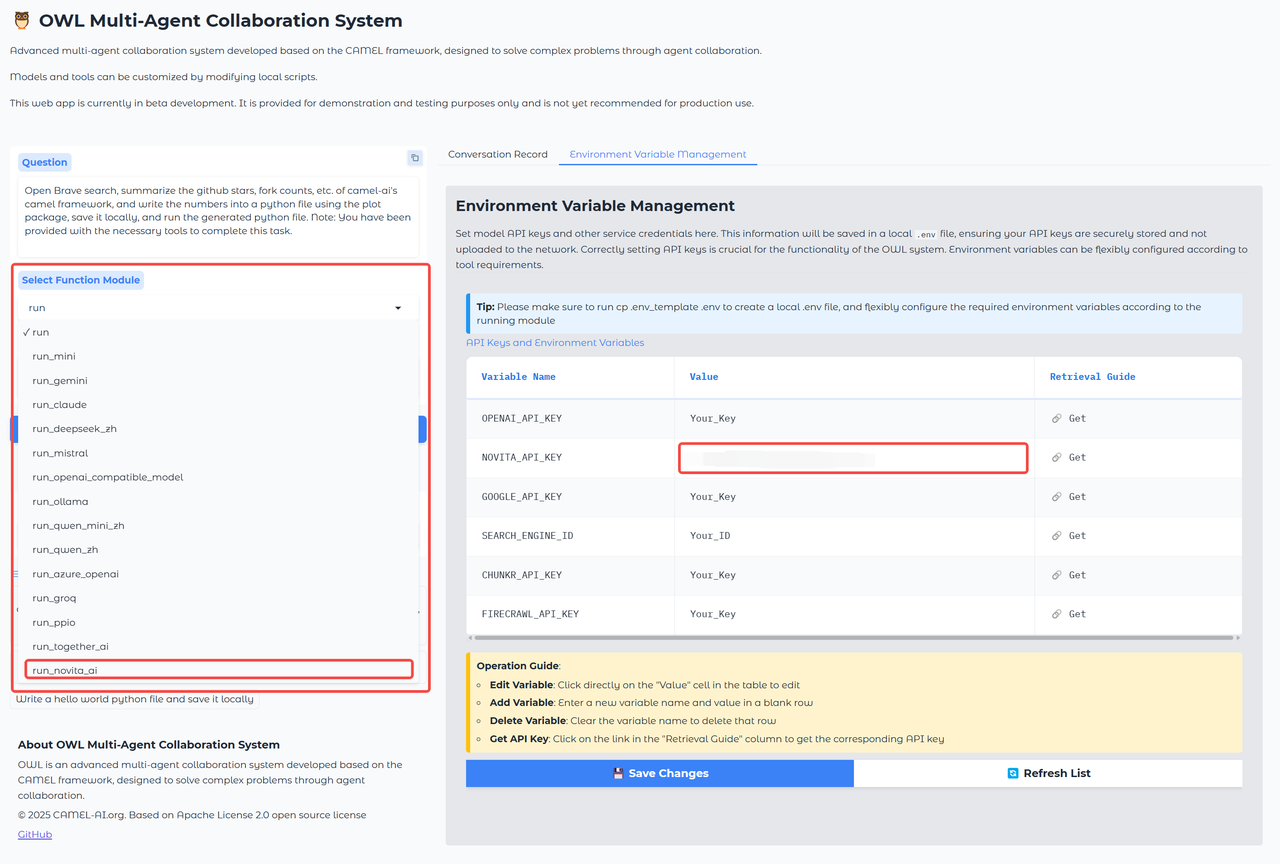
-
Click
Runto execute your task.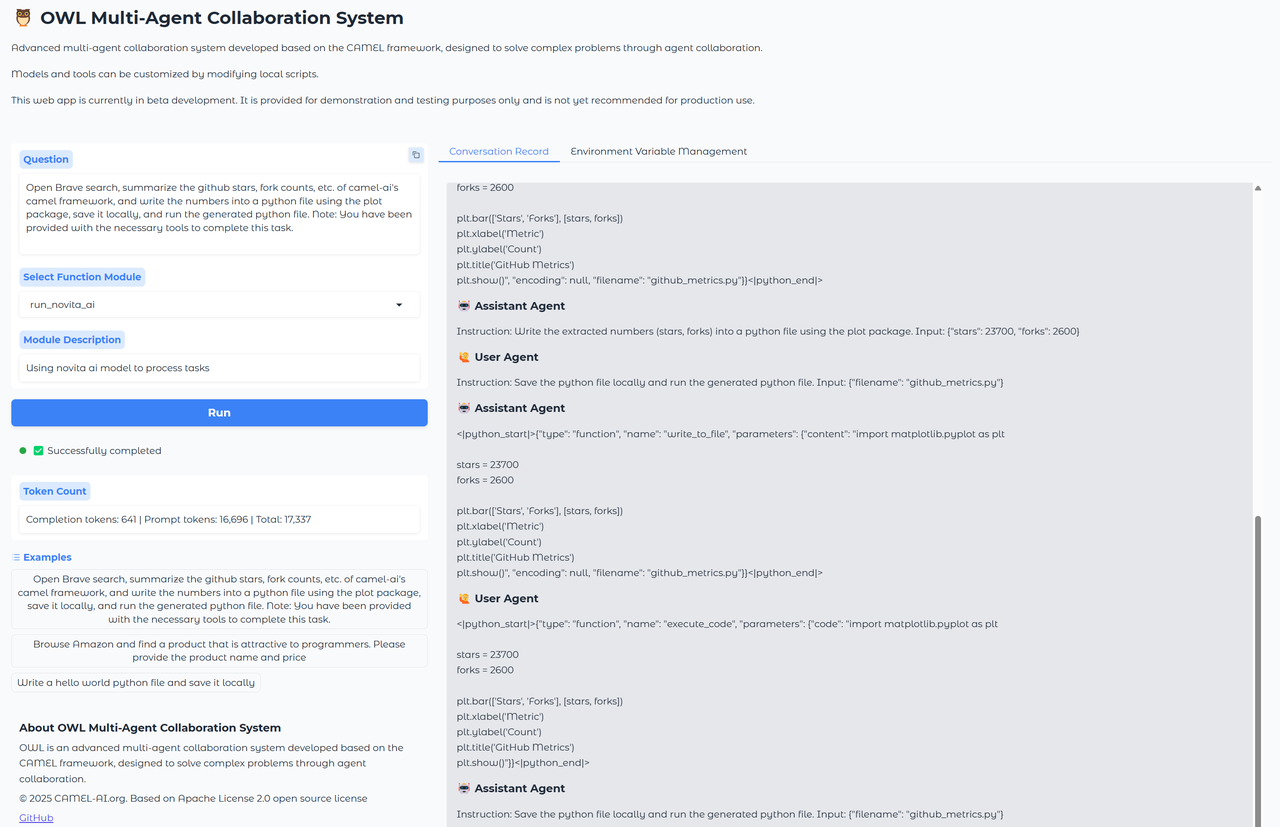
-
To perform a new task, update the input field and click
Runagain.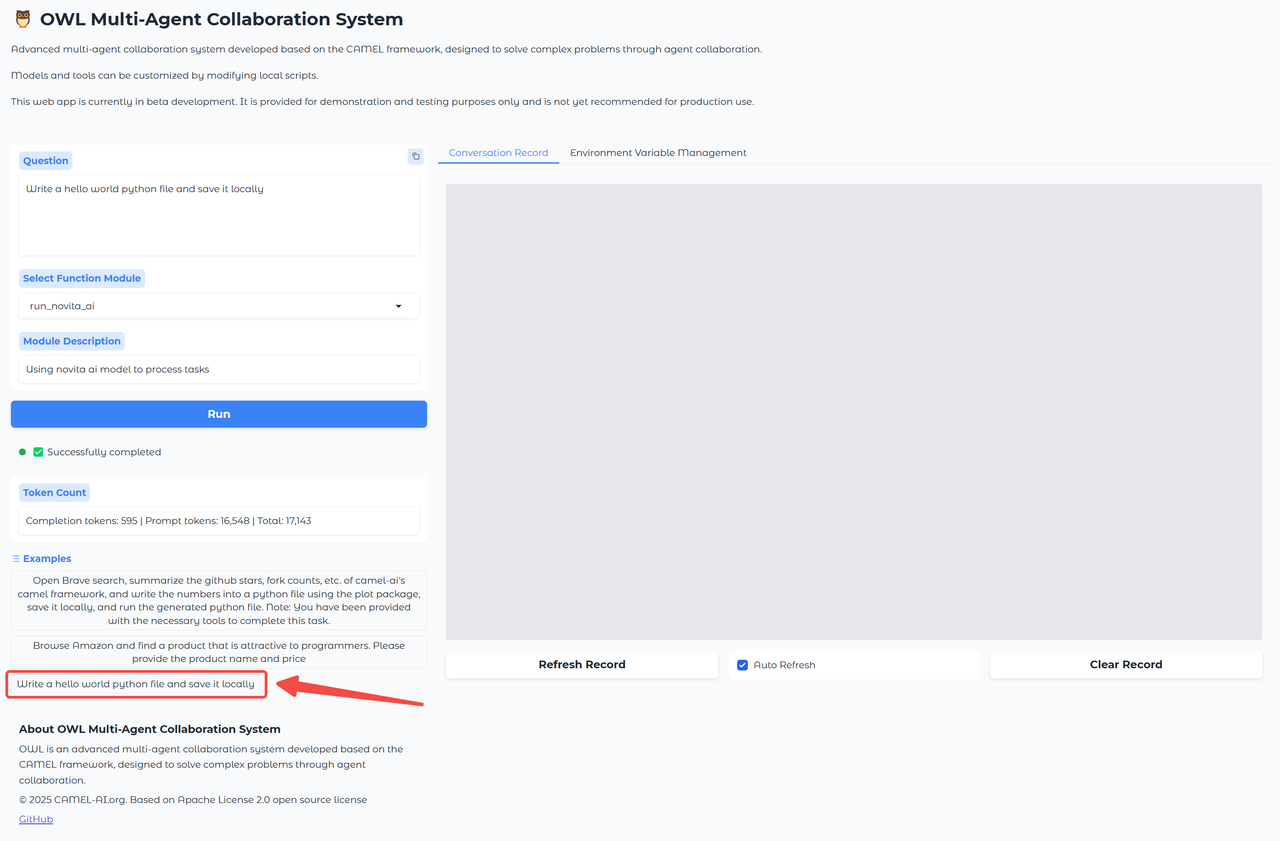
-
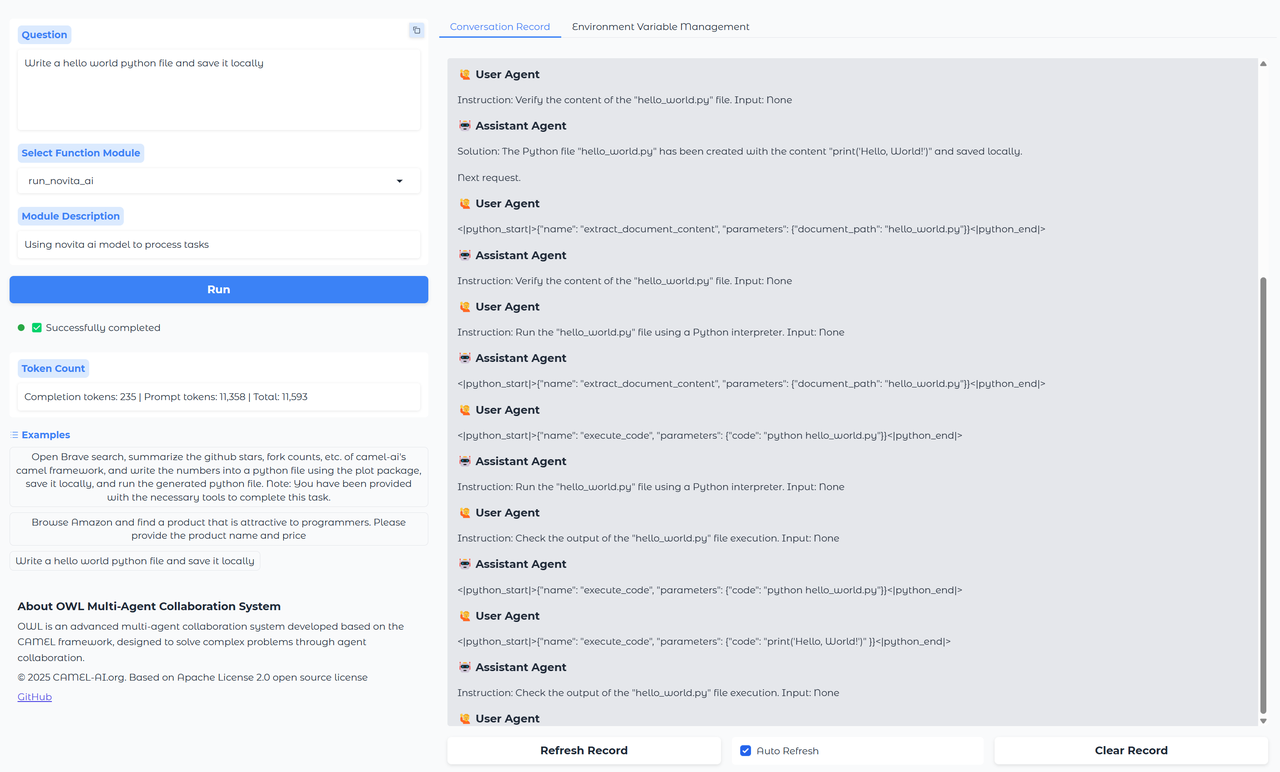
Results will be displayed in the terminal, or a new file will be generated in the root directory, depending on the task.
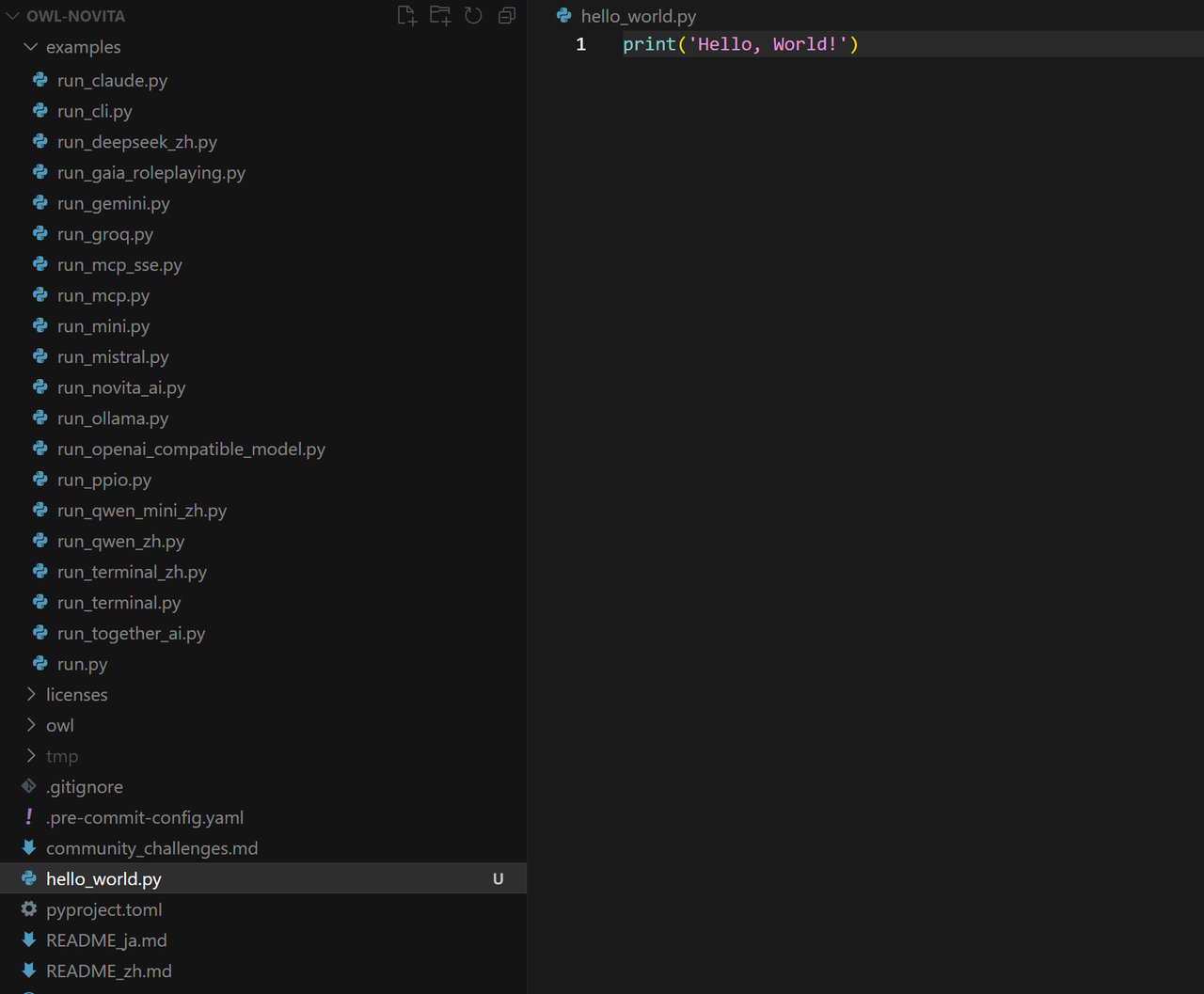
-
Alternatively, you can directly input your desired task into the content box and click the
Runbutton to execute it.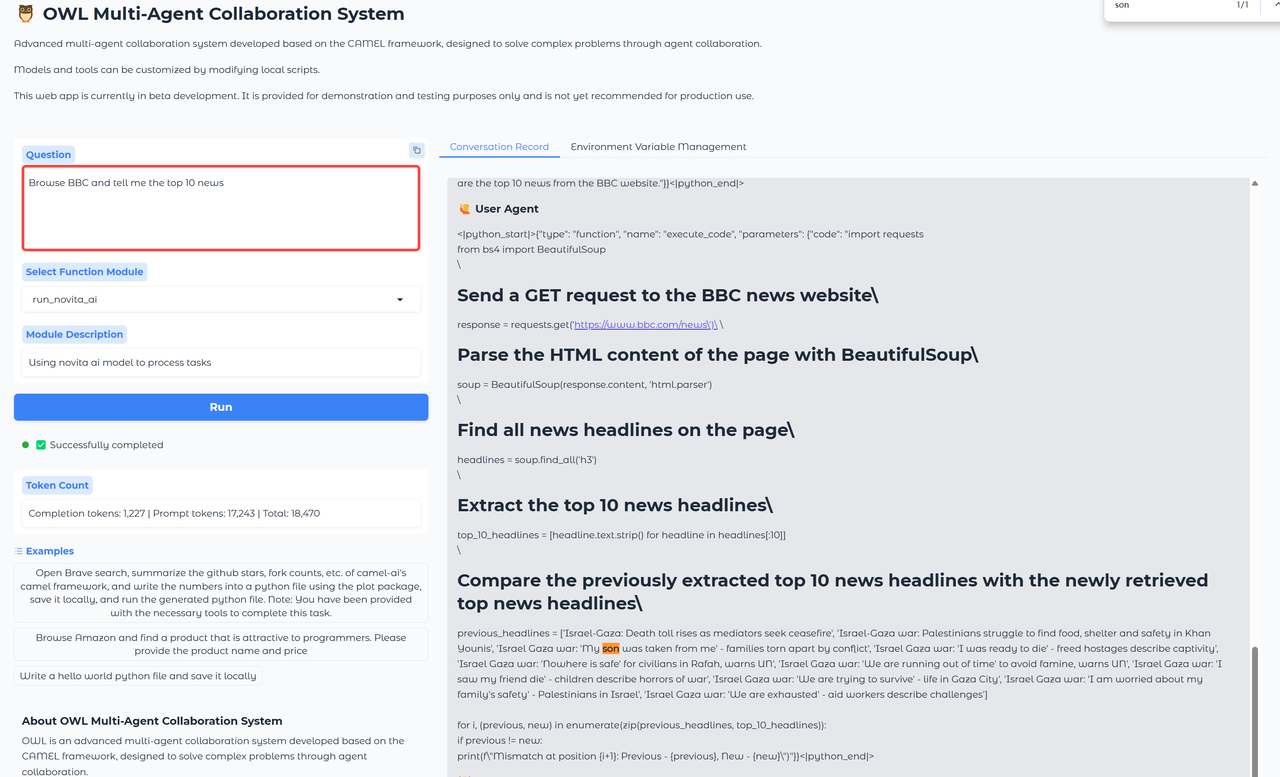
-
Select