> ## Documentation Index
> Fetch the complete documentation index at: https://novita.ai/docs/llms.txt
> Use this file to discover all available pages before exploring further.
# How to Explore the Templates in Novita?
> The Template Community enables you to easily create, share, and deploy templates. Join us and become a part of the community!
## Let’s start by creating a template!
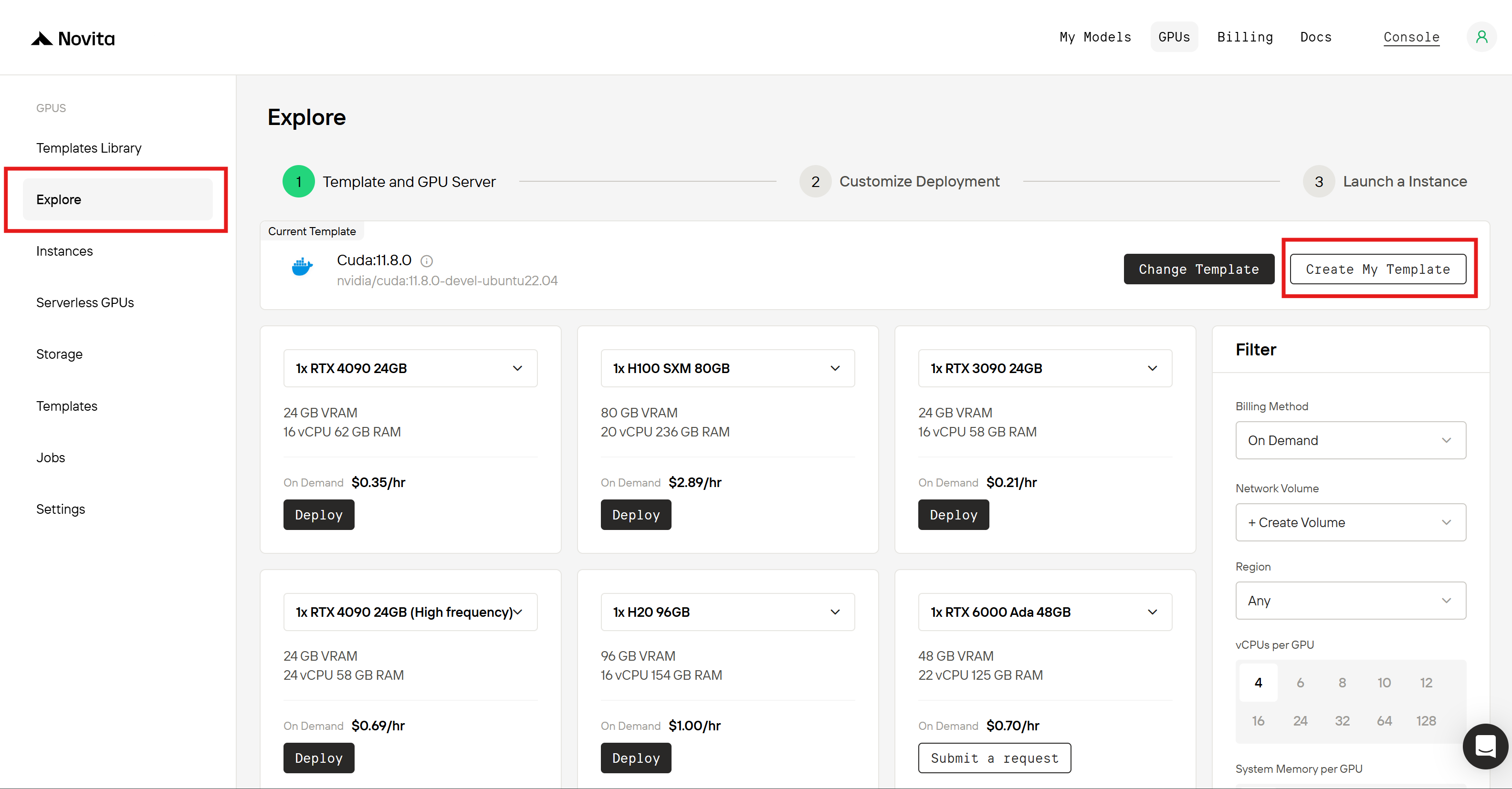
There are two ways to access the `Create New Template` :
1. **Option 1**: In the Console, go to the [Explore ](https://novita.ai/gpus-console/explore)section and find the `Create My Template` button.
 2. **Option 2**: In the Console, go to the [Template ](https://novita.ai/gpus-console/templates)section and find the `New Template` button.
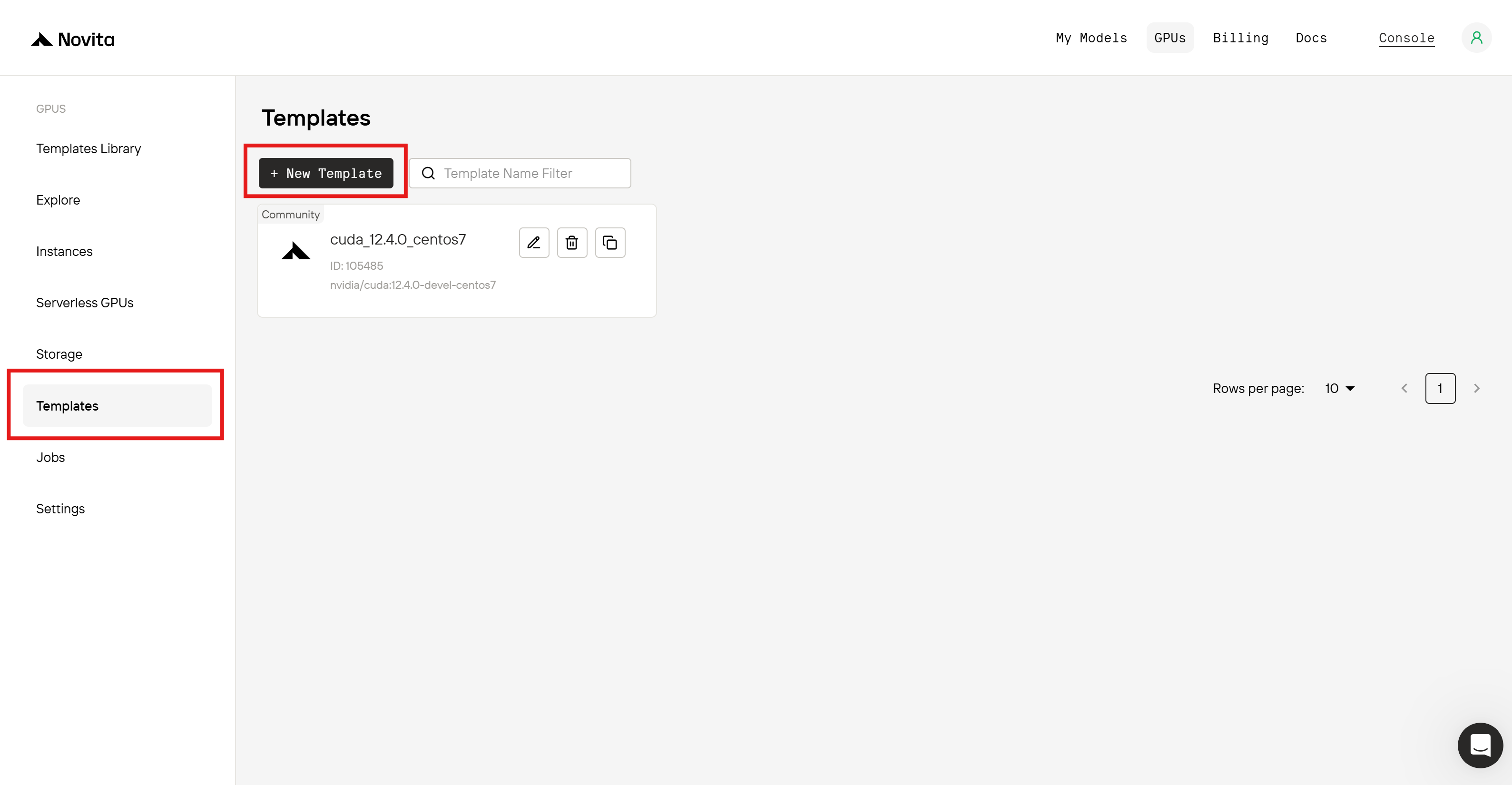 Once you click on it, you’ll open the `Create Template` popup.
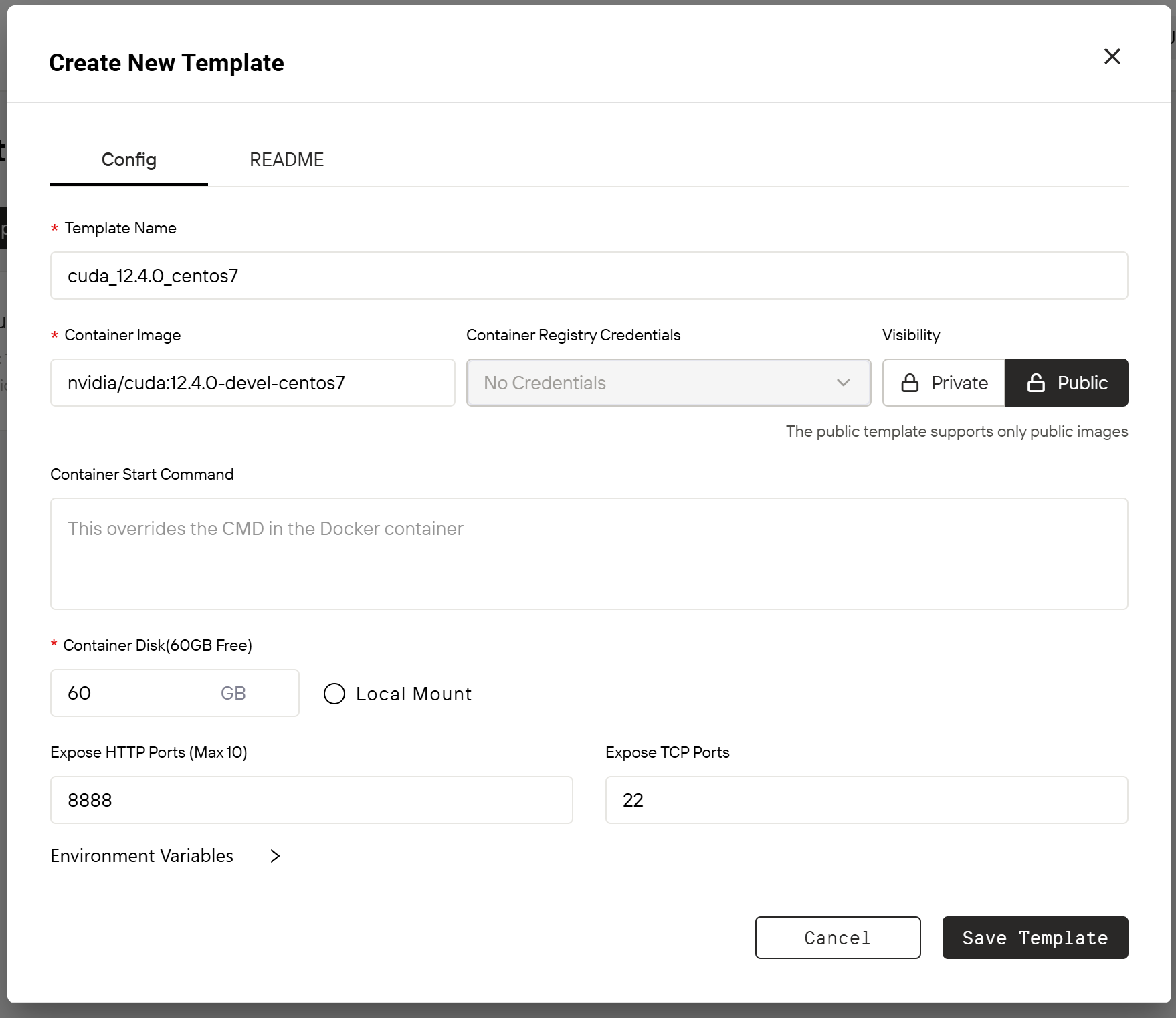 **Here, you’ll need to configure your template:**
1. **Name Your Template:** Choose a clear name that makes it easy to identify and use. We suggest selecting a name that relates to the content of the image.
2. **Set up the image:** Bundle your runtime environment into an image and upload it to an image repository ahead of time. Then, paste the image URL into the `Container Image` field.\
Novita AI supports both public and private image repositories (with optional access credentials). If you're using a **private image repository**, you must provide Container Registry Credentials, which can be added under [**Settings > Container Registry Auth.**](https://novita.ai/gpus-console/settings)
3. **Set Template Visibility:** You can choose `Private`, which makes the template accessible only to you and your team. However, we strongly recommend selecting `Public` to share your work with the broader community. Public templates will appear in the Template Library, where all users can view, deploy, favorite, and share them—helping your work gain visibility and appreciation.
**Please note:** for security reasons, **public templates only support public image repositories**, and the Container Registry Credentials input will be disabled.
4. **Specify Container Disk Size:** Determine the disk size based on your needs. We provide 60 GB of free disk space by default.
5. **Advanced Configuration Options:** To improve usability, you can optionally provide advanced configuration options such as `Container Start Command`, `Local Mount`, `Expose HTTP/TCP Ports`, and `Environment Variables`.
You can find detailed explanations of these terms [here](https://novita.ai/docs/guides/gpu-instance-overview).
**Here, you’ll need to configure your template:**
1. **Name Your Template:** Choose a clear name that makes it easy to identify and use. We suggest selecting a name that relates to the content of the image.
2. **Set up the image:** Bundle your runtime environment into an image and upload it to an image repository ahead of time. Then, paste the image URL into the `Container Image` field.\
Novita AI supports both public and private image repositories (with optional access credentials). If you're using a **private image repository**, you must provide Container Registry Credentials, which can be added under [**Settings > Container Registry Auth.**](https://novita.ai/gpus-console/settings)
3. **Set Template Visibility:** You can choose `Private`, which makes the template accessible only to you and your team. However, we strongly recommend selecting `Public` to share your work with the broader community. Public templates will appear in the Template Library, where all users can view, deploy, favorite, and share them—helping your work gain visibility and appreciation.
**Please note:** for security reasons, **public templates only support public image repositories**, and the Container Registry Credentials input will be disabled.
4. **Specify Container Disk Size:** Determine the disk size based on your needs. We provide 60 GB of free disk space by default.
5. **Advanced Configuration Options:** To improve usability, you can optionally provide advanced configuration options such as `Container Start Command`, `Local Mount`, `Expose HTTP/TCP Ports`, and `Environment Variables`.
You can find detailed explanations of these terms [here](https://novita.ai/docs/guides/gpu-instance-overview).
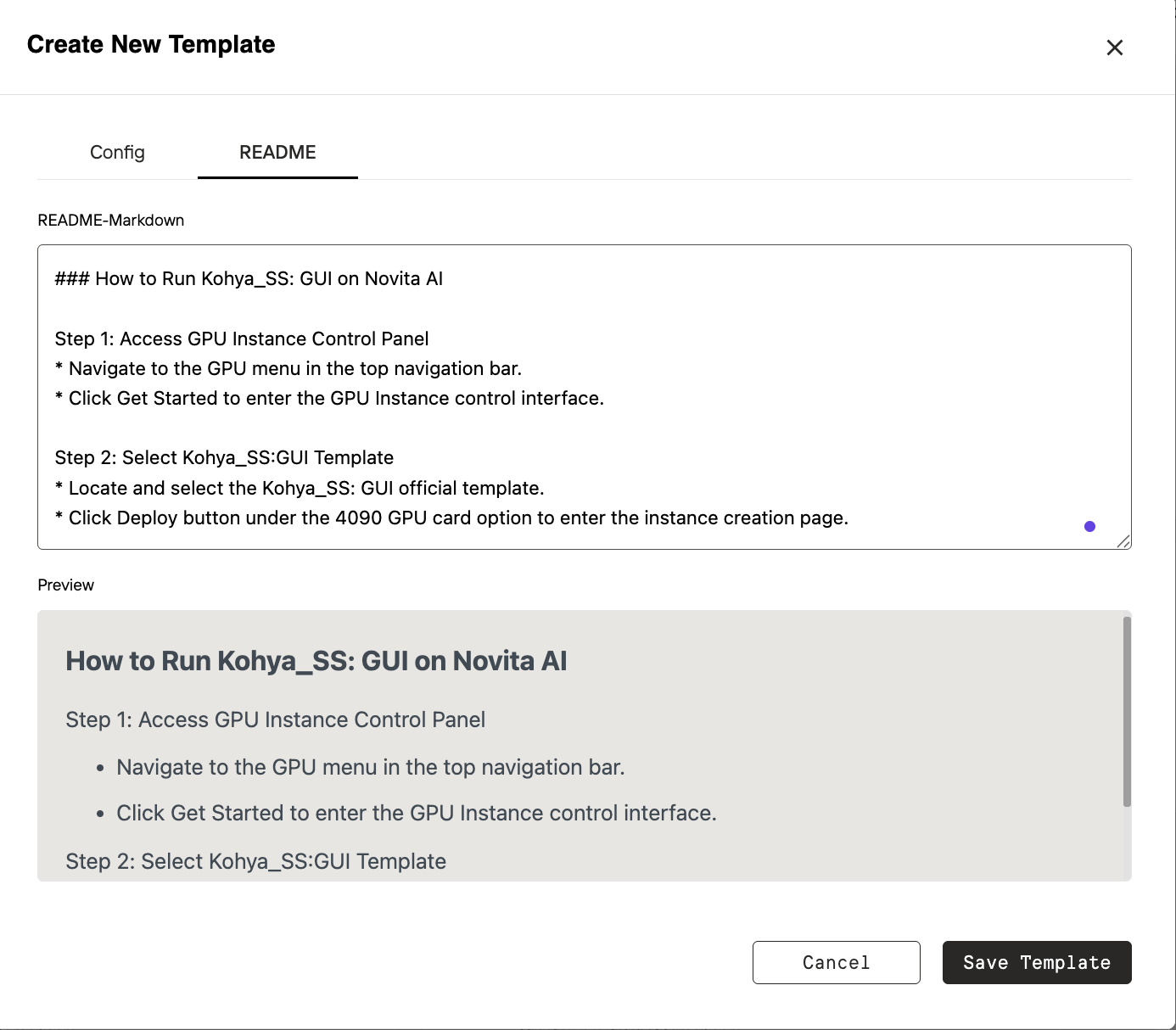 We strongly encourage you to create a `README` that clearly explains the purpose and configuration of your template. A well-written README helps both you and your team quickly understand the template and makes it easier for others to use—especially if you choose to share it publicly.
* To ensure your template is easy to adopt, we recommend keeping your README **concise and beginner-friendly**.
* If your template requires any **external dependencies**, please include **clear setup instructions** within the README. This guidance helps others successfully deploy your template and ensures a smooth experience
**Unsure What Kind of Template to Create?**
* We suggest checking out popular open-source projects such as **vLLM**, **SGLang**, **Ollama**, **ComfyUI**, **Stable Diffusion WebUI**, or base environments like **CUDA**, **PyTorch**, or OS-specific setups (e.g., **CentOS** / **Ubuntu**, different versions).
We look forward to seeing what you create!
***
## Then try to explore some templates in the library!
If you've created a public template, you’ll see it in the [**Console > Template Library**](https://novita.ai/gpus-console/templates-library) section.
We strongly encourage you to create a `README` that clearly explains the purpose and configuration of your template. A well-written README helps both you and your team quickly understand the template and makes it easier for others to use—especially if you choose to share it publicly.
* To ensure your template is easy to adopt, we recommend keeping your README **concise and beginner-friendly**.
* If your template requires any **external dependencies**, please include **clear setup instructions** within the README. This guidance helps others successfully deploy your template and ensures a smooth experience
**Unsure What Kind of Template to Create?**
* We suggest checking out popular open-source projects such as **vLLM**, **SGLang**, **Ollama**, **ComfyUI**, **Stable Diffusion WebUI**, or base environments like **CUDA**, **PyTorch**, or OS-specific setups (e.g., **CentOS** / **Ubuntu**, different versions).
We look forward to seeing what you create!
***
## Then try to explore some templates in the library!
If you've created a public template, you’ll see it in the [**Console > Template Library**](https://novita.ai/gpus-console/templates-library) section.
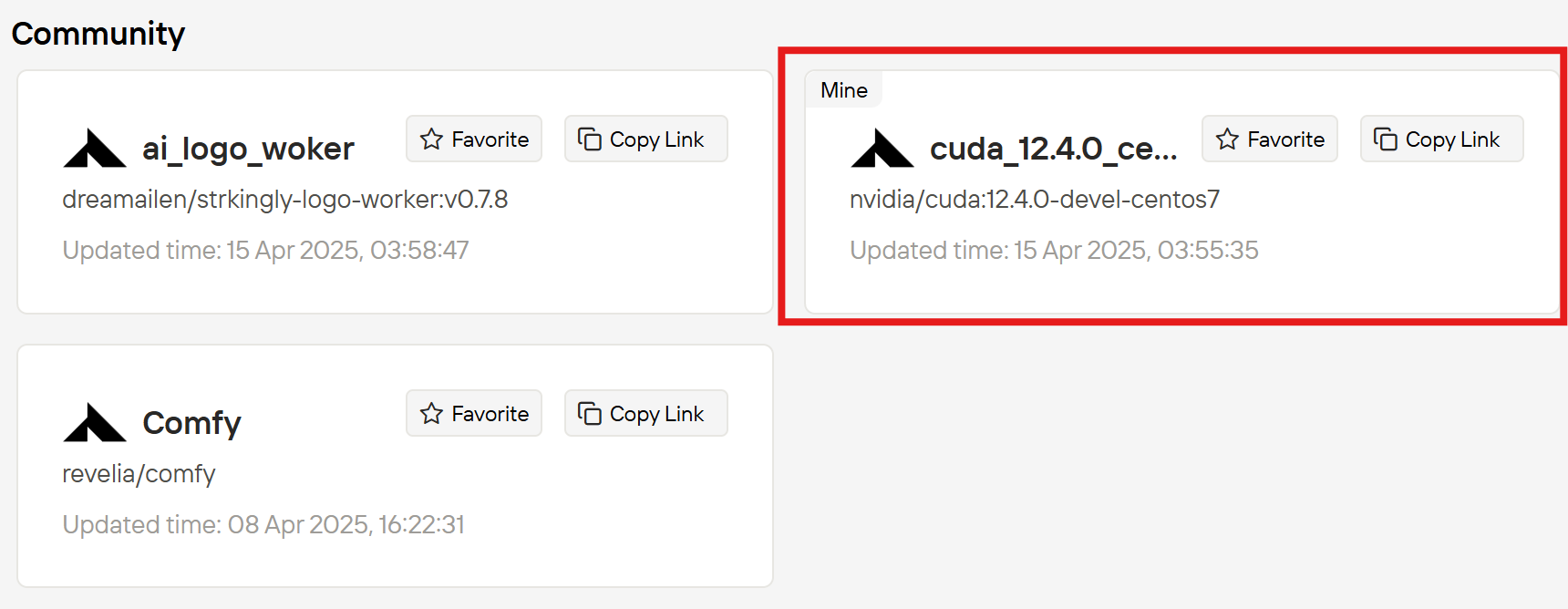 In the `Template Library`, you’ll find templates uploaded by both Novita and the community. Clicking on a template will display the information about it, including the `README` and `configuration details`. If you like the template, you can click `Deploy` to instantly deploy it.
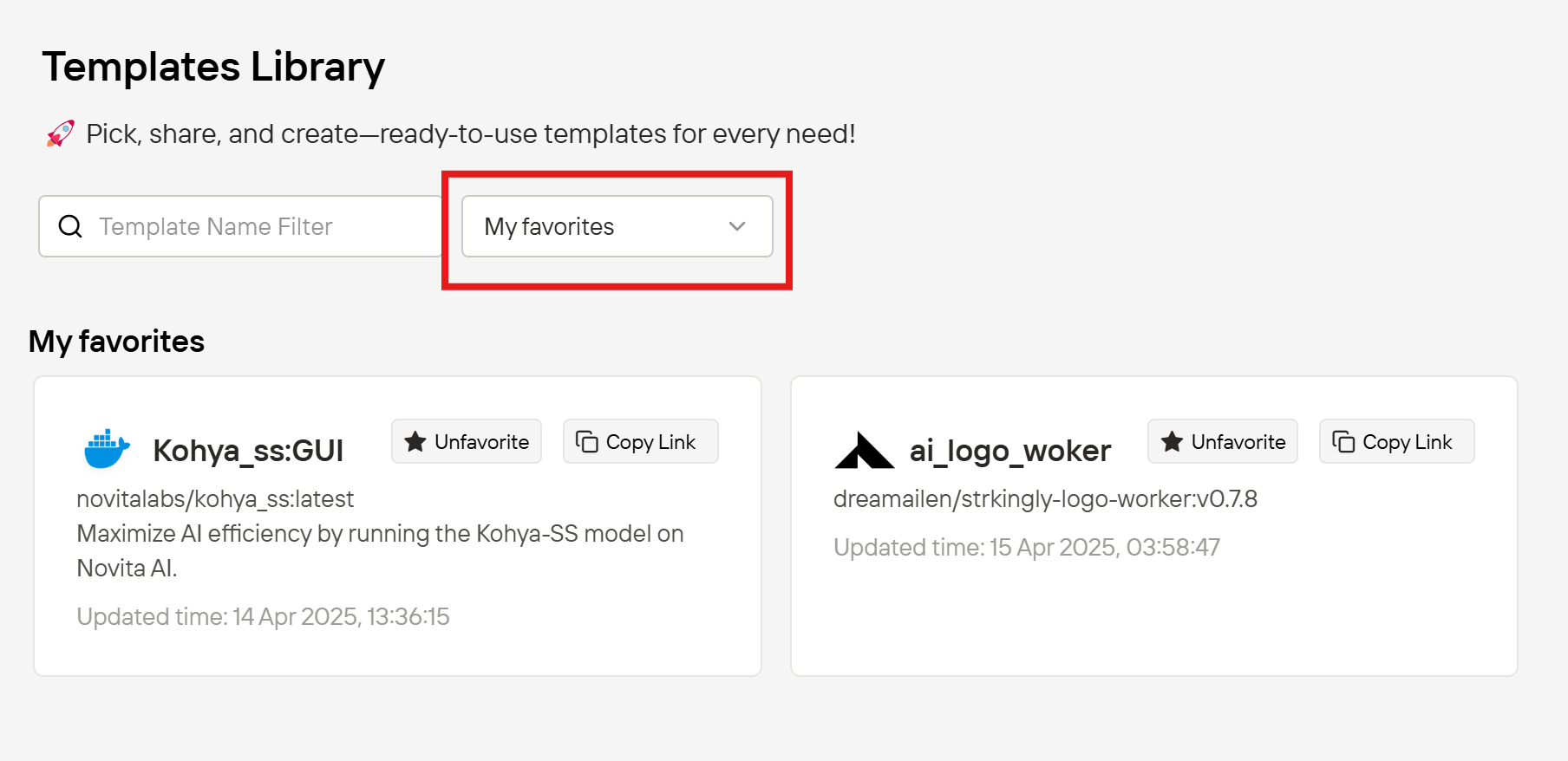
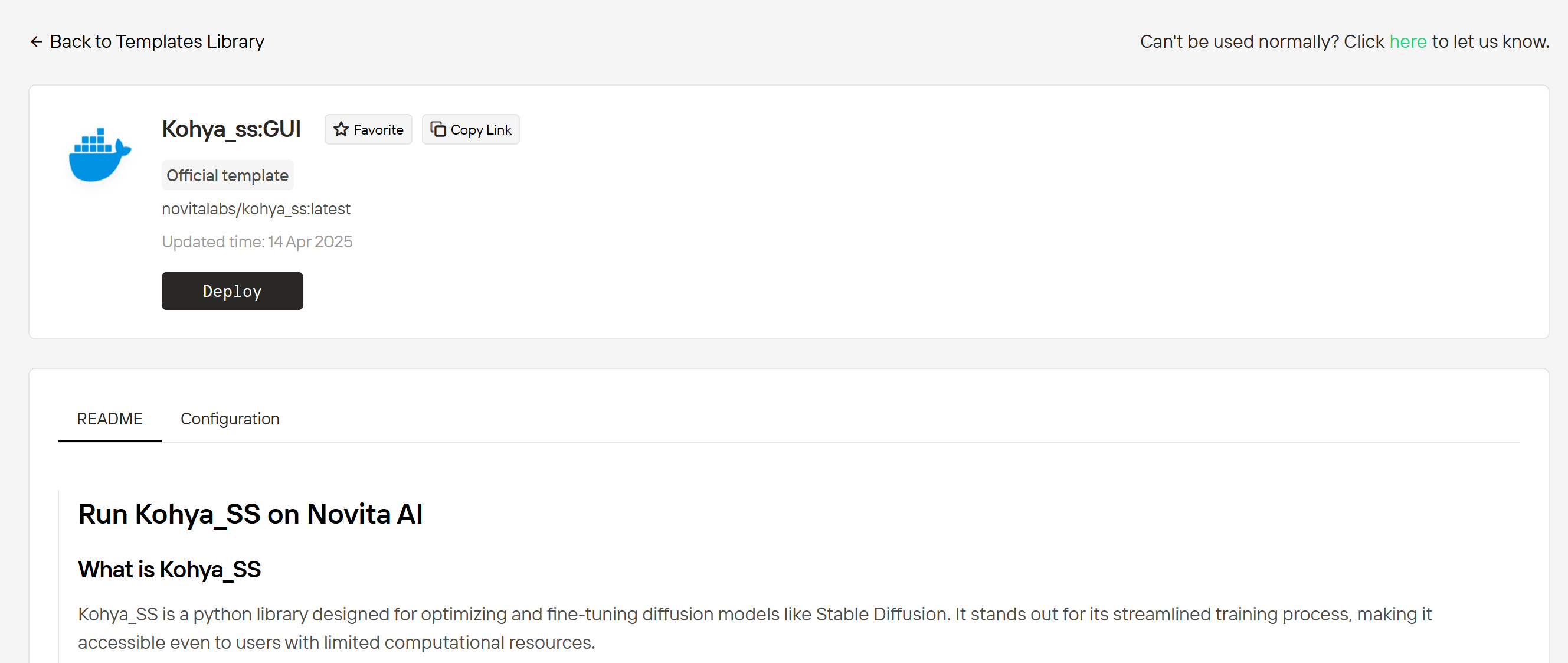 If you really like a template, you can click `Favorite` to save it to your favorites. This makes it easier to find later, and your `favoriting` helps bring attention to the template, allowing more users to discover it. Your favorited templates will be displayed when you filter by `My favorites`.
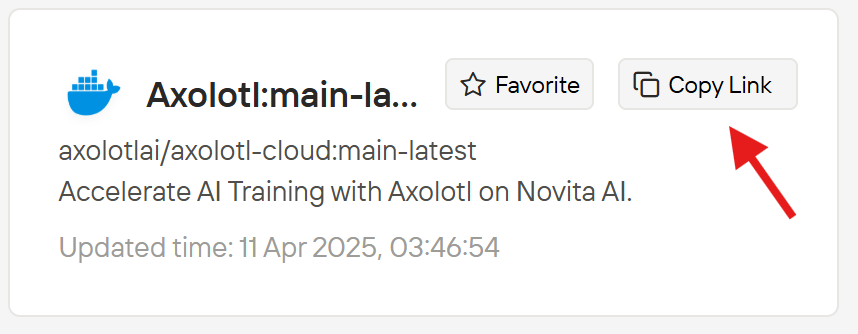
 **Want to share this template with your friends?** Click the `Copy Link` button to easily share it. This way, they can check it out and use it!
 ***
## Use a template to create an instance
The `Template Library` is integrated into the `Explore` section during instance creation.
***
## Use a template to create an instance
The `Template Library` is integrated into the `Explore` section during instance creation.
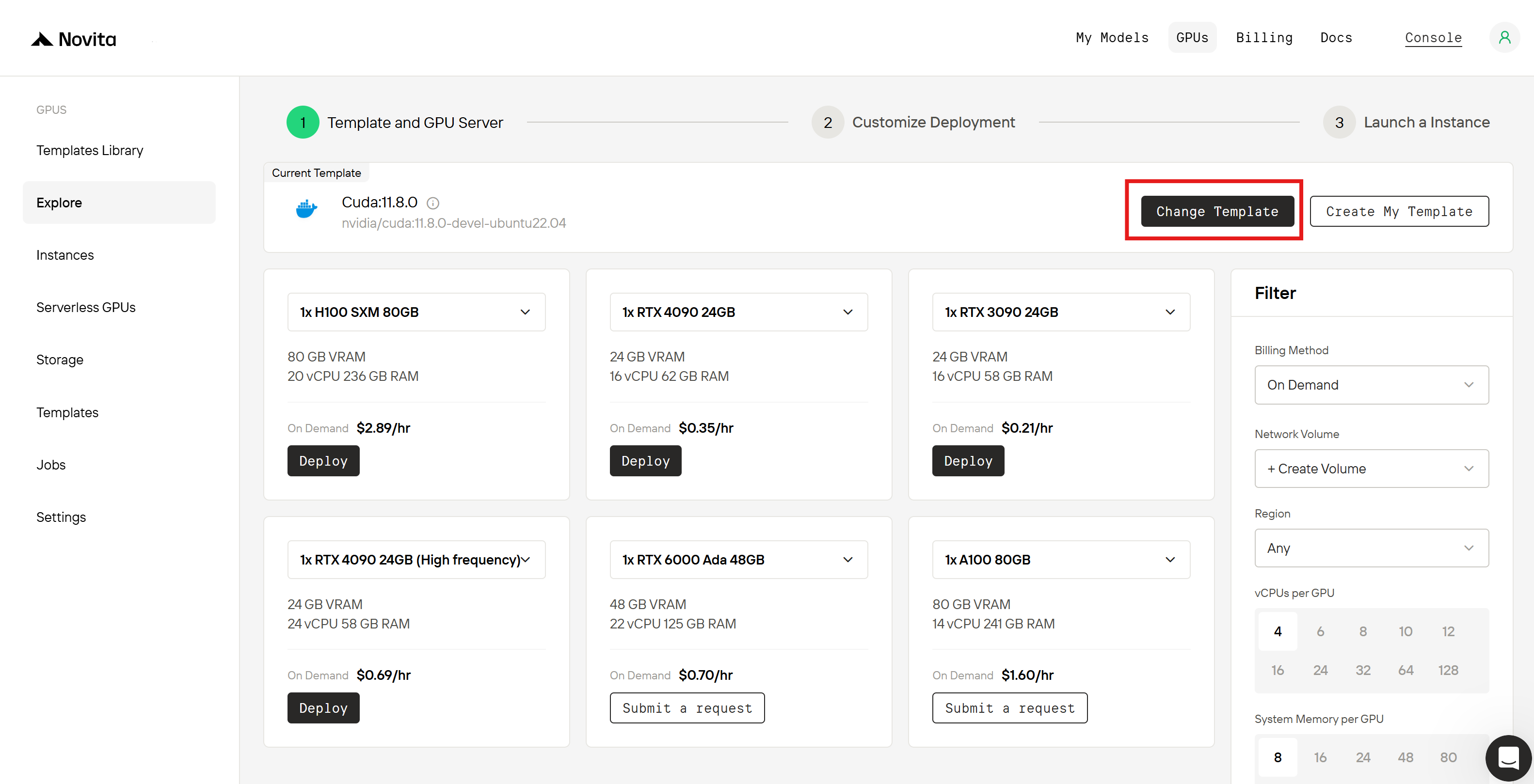 Click `Change Template` to view both personal/team-created templates and all templates from the Template Library. Here, you can also filter to select your favorited templates.
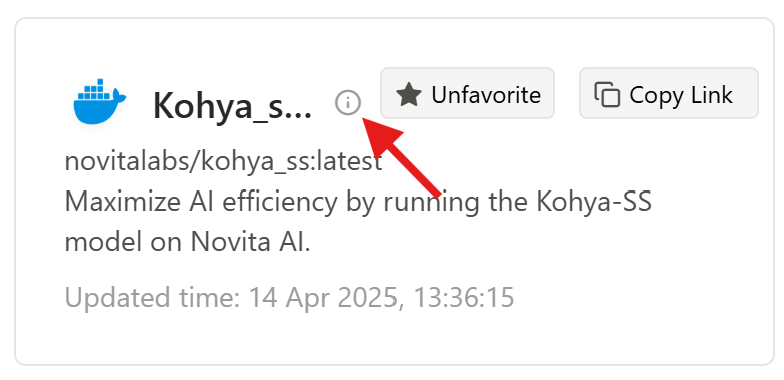
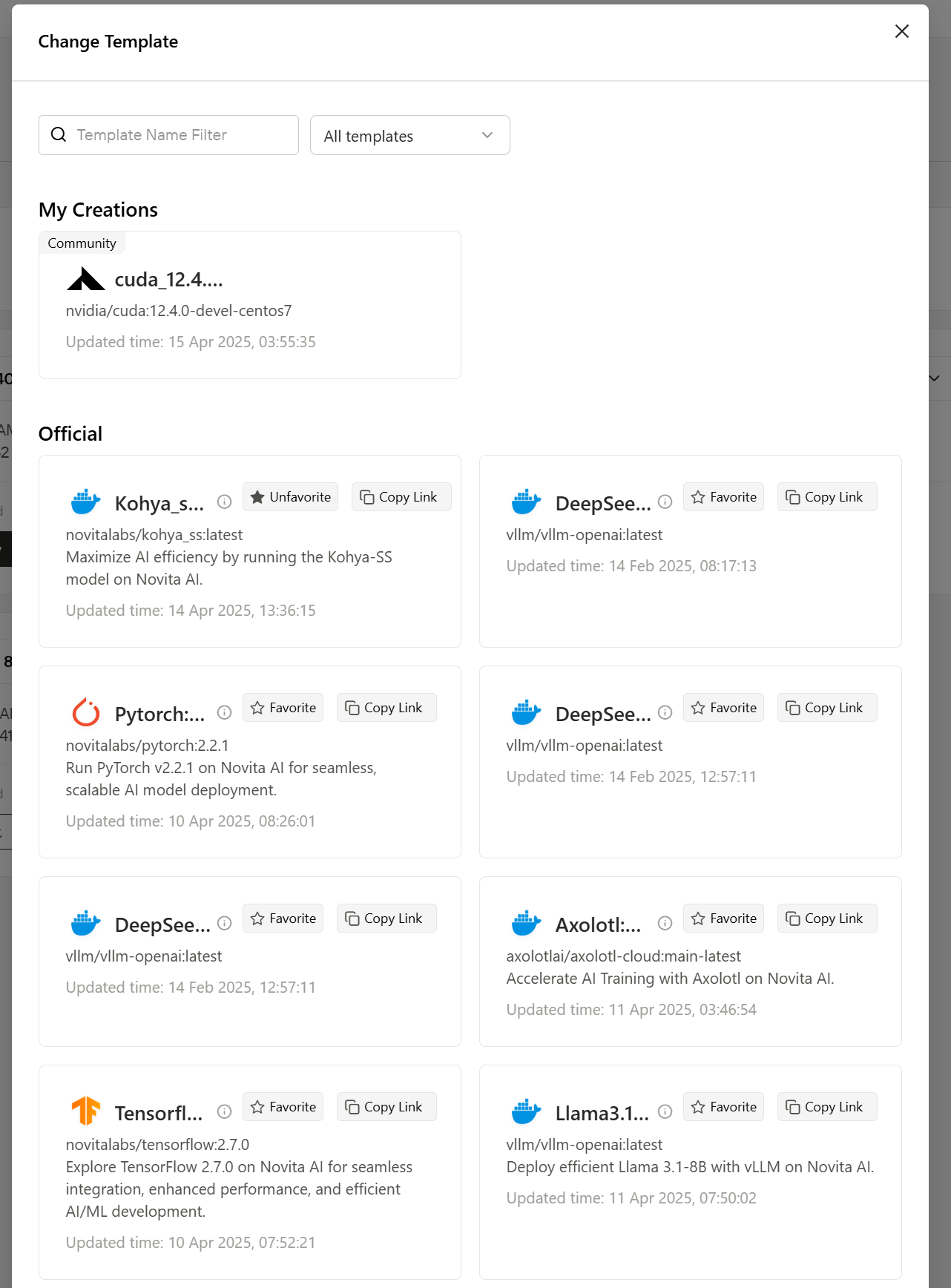 Click on a template’s icon to view its details. Once you’ve found the template you need, click on it to select it and proceed with instance creation.
 ***
## Join Us!
**Now that you know how to create, upload, and share templates, come join us in building a community-friendly template ecosystem for tech enthusiasts!**
**Get in Touch:**
* Discord: [novita.ai](https://discord.com/invite/a3vd9r3uET)
***
## Join Us!
**Now that you know how to create, upload, and share templates, come join us in building a community-friendly template ecosystem for tech enthusiasts!**
**Get in Touch:**
* Discord: [novita.ai](https://discord.com/invite/a3vd9r3uET)