> ## Documentation Index
> Fetch the complete documentation index at: https://novita.ai/docs/llms.txt
> Use this file to discover all available pages before exploring further.
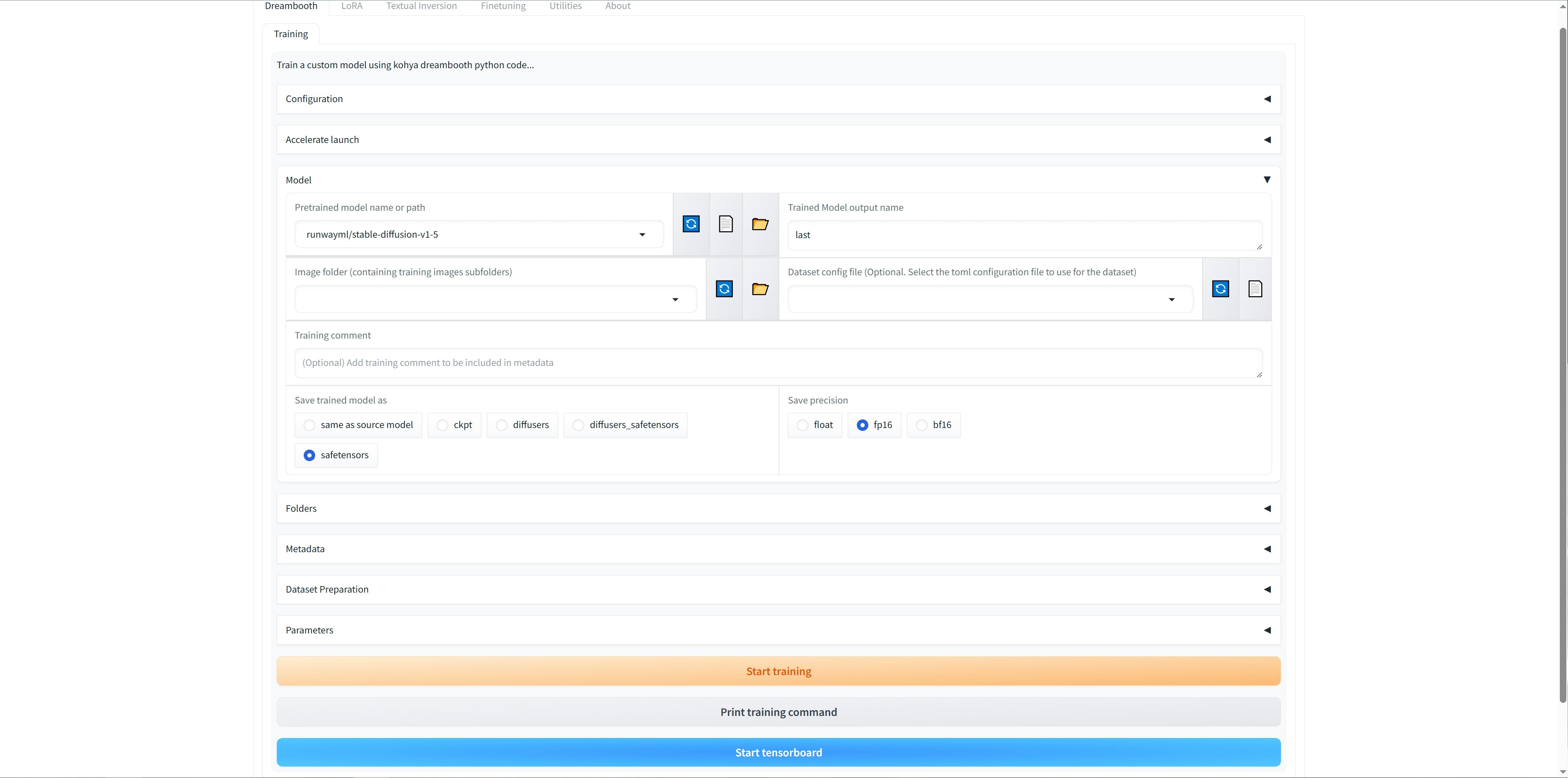
> Transform Your Stable Diffusion Experience with Kohya_SS GUI on Novita AI.
# Run Kohya_SS GUI on Novita AI
Kohya\_SS GUI offers a user-friendly Gradio interface for Kohya's Stable Diffusion trainers. It has strong Linux support through community installations, with limited but possible macOS compatibility. Combining Novita AI with Kohya\_SS GUI streamlines AI model training workflows, removing hardware limitations and creating an optimized environment for diffusion model fine-tuning.
This guide will show you how to deploy and run Kohya\_SS GUI on Novita AI's platform.
## How to Run Kohya\_ss: GUI on Novita AI
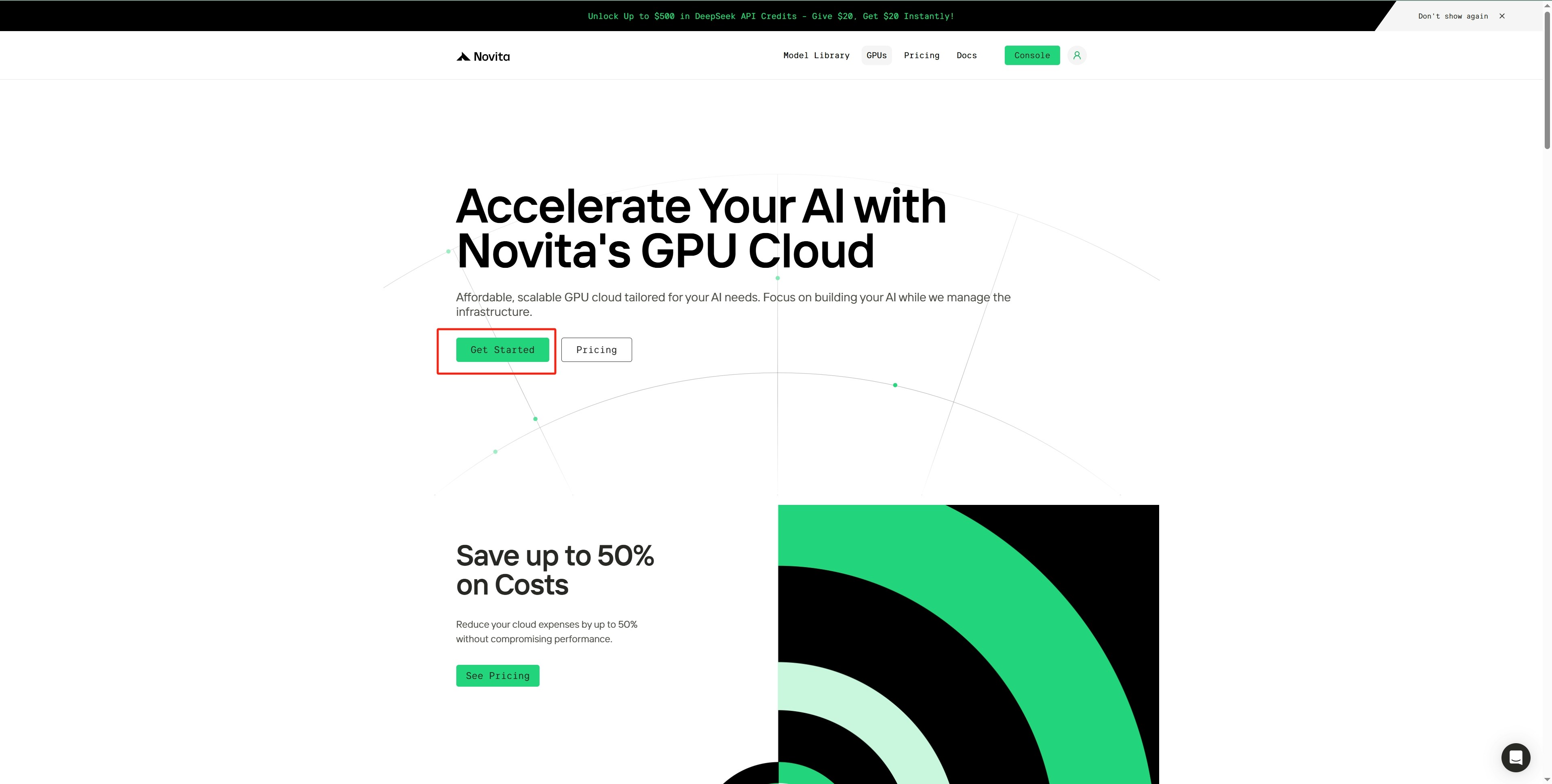
Step 1: Access GPU Instance Control Panel
* Navigate to the `GPU menu` in the top navigation bar.
* Click `Get Started` to enter the GPU Instance control interface.
###  Step 2: Select Kohya\_ss:GUI Template
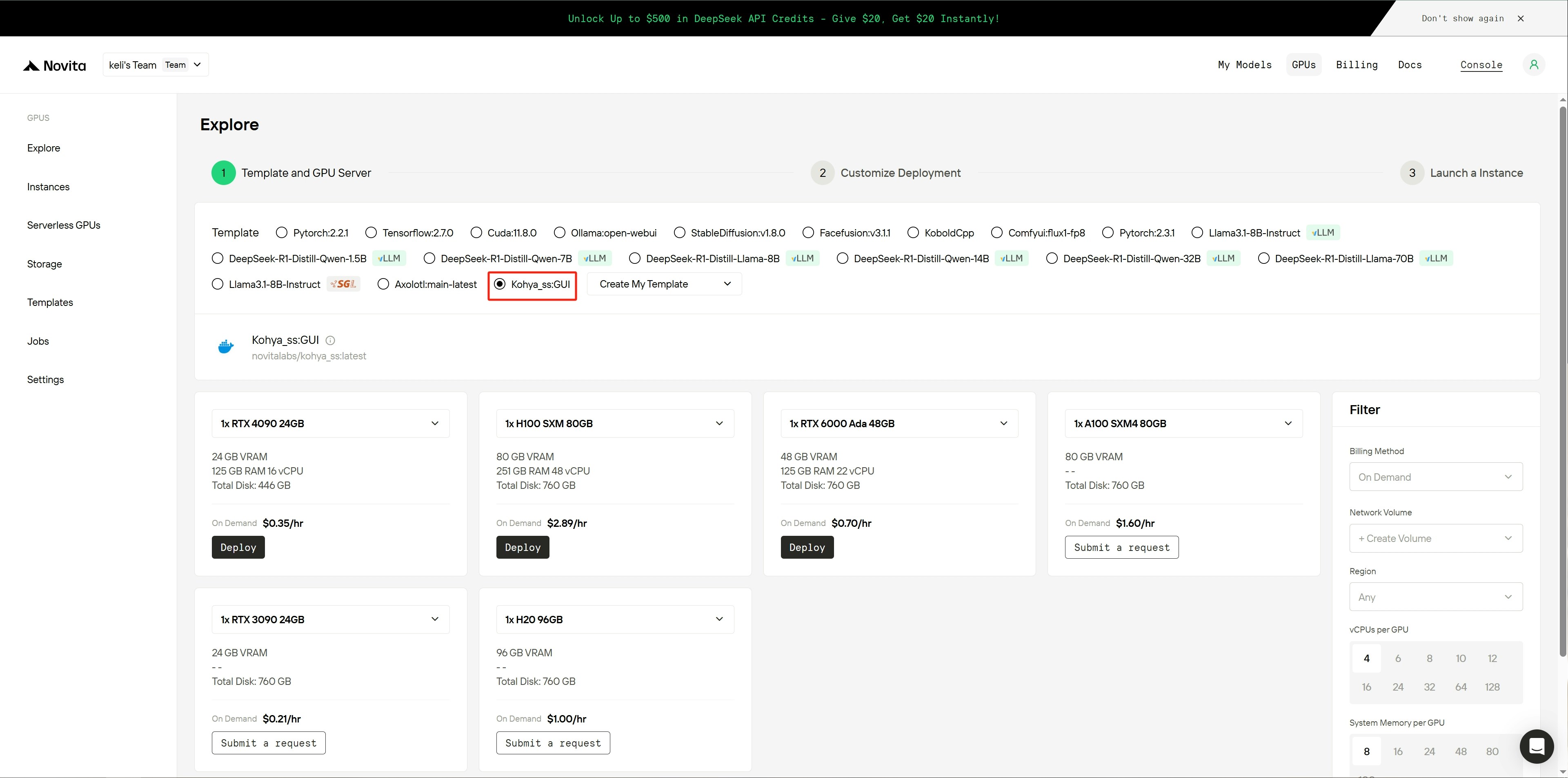
* Locate and select the `Kohya_ss:GUI` official template.
* Click `Deploy` button under the 4090 GPU card option to enter the instance creation page.
###
Step 2: Select Kohya\_ss:GUI Template
* Locate and select the `Kohya_ss:GUI` official template.
* Click `Deploy` button under the 4090 GPU card option to enter the instance creation page.
###  Step 3: Configure Disk Parameters and Review Configuration Settings
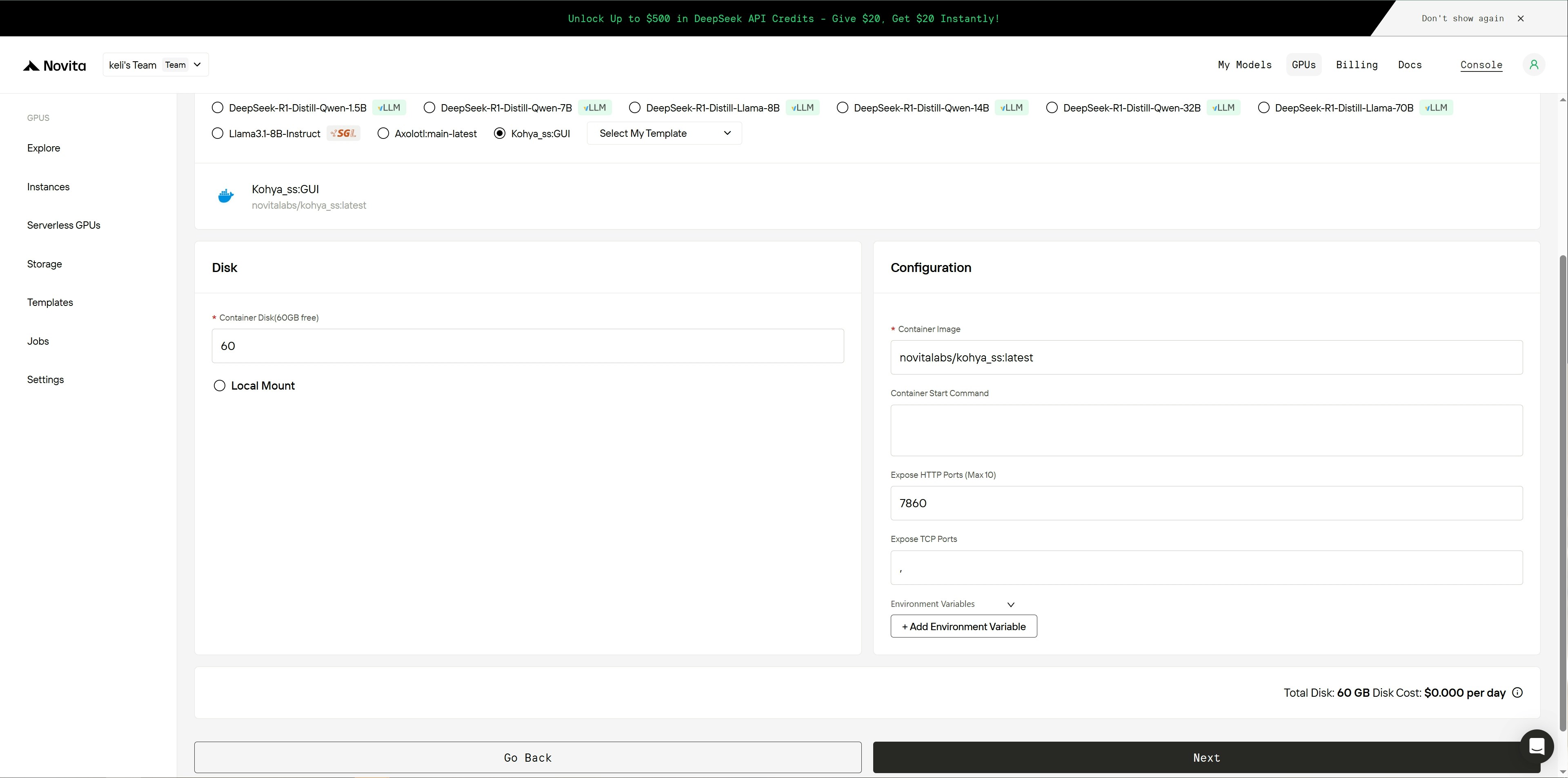
* On the left panel, adjust the disk settings as needed:
* Set appropriate system disk size;
* Configure local disk capacity based on your storage needs.
* Check the right panel for configuration options:
* Verify image settings are correct;
* Confirm startup commands are properly configured;
* Ensure ports and environment variables meet your requirements.
* Confirm all settings are correct and then click the `Next` button to advance to the final confirmation page.
###
Step 3: Configure Disk Parameters and Review Configuration Settings
* On the left panel, adjust the disk settings as needed:
* Set appropriate system disk size;
* Configure local disk capacity based on your storage needs.
* Check the right panel for configuration options:
* Verify image settings are correct;
* Confirm startup commands are properly configured;
* Ensure ports and environment variables meet your requirements.
* Confirm all settings are correct and then click the `Next` button to advance to the final confirmation page.
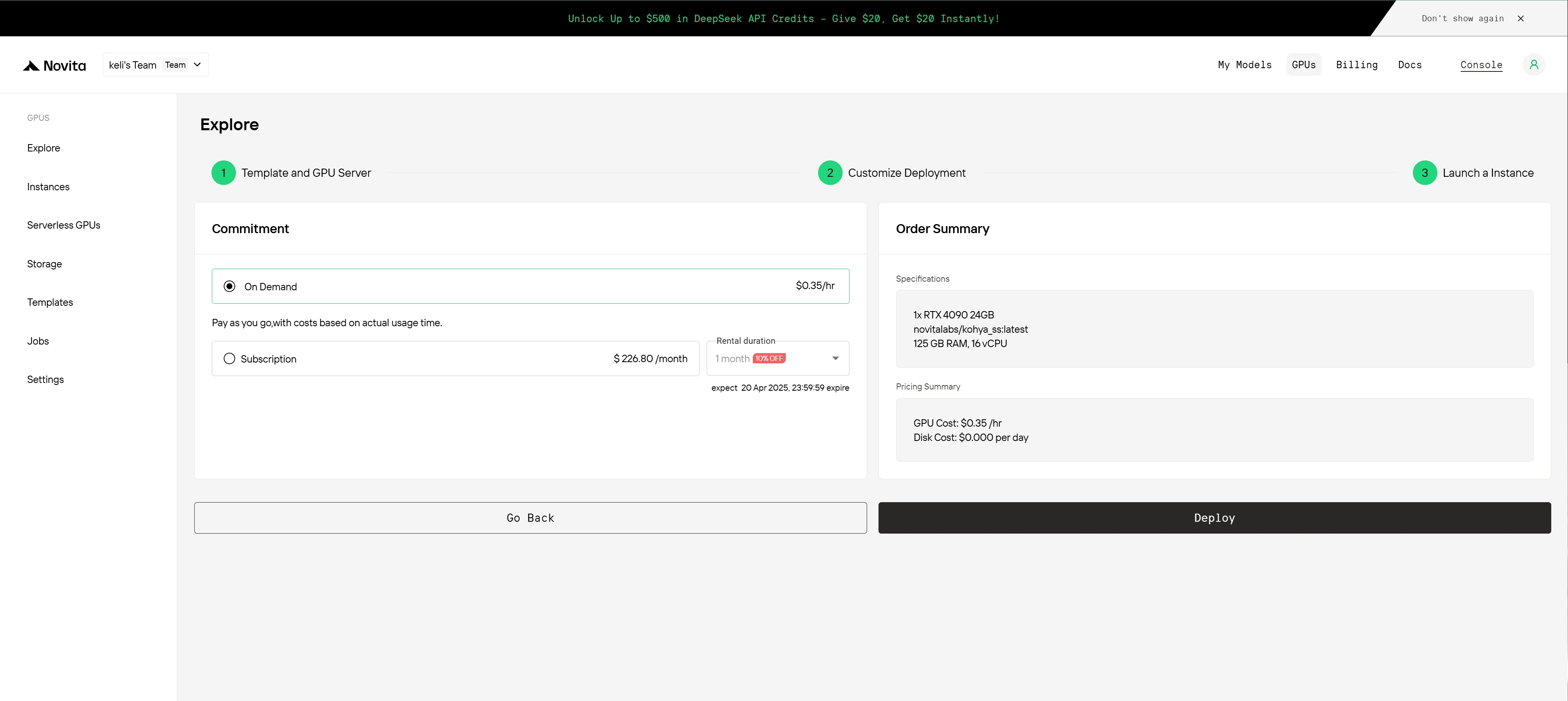
###  Step 4: Proceed to Confirmation and Deploy Your Instance
* Review the complete instance configuration summary.
* Verify the cost details displayed on this page.
* Click `Deploy` to initiate the deployment process.
###
Step 4: Proceed to Confirmation and Deploy Your Instance
* Review the complete instance configuration summary.
* Verify the cost details displayed on this page.
* Click `Deploy` to initiate the deployment process.
###  Step 5: Wait as the System Creates Your Instance
###
Step 5: Wait as the System Creates Your Instance
### 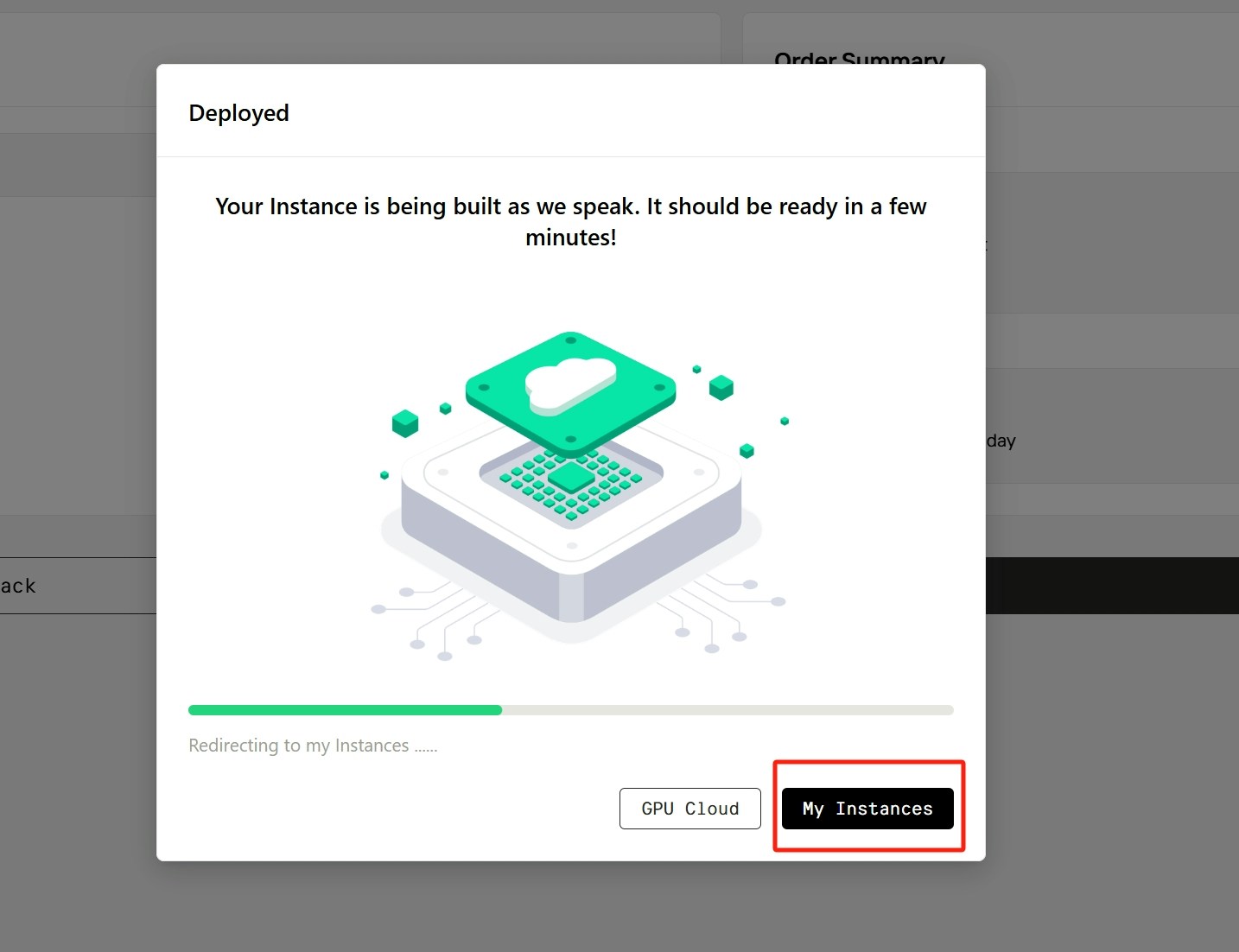 Step 6: Monitor Deployment Progress and Track Image Download
* After deployment, the system will automatically redirect you to the instance management page.
* Your new instance will display `Pulling` status while downloading the image.
* After clicking the arrow icon next to your instance name, the instance details panel will be expanded with the image download progress in real-time.
* Once image downloading completes, instance will change status from `Pulling` to `Running`.
###
Step 6: Monitor Deployment Progress and Track Image Download
* After deployment, the system will automatically redirect you to the instance management page.
* Your new instance will display `Pulling` status while downloading the image.
* After clicking the arrow icon next to your instance name, the instance details panel will be expanded with the image download progress in real-time.
* Once image downloading completes, instance will change status from `Pulling` to `Running`.
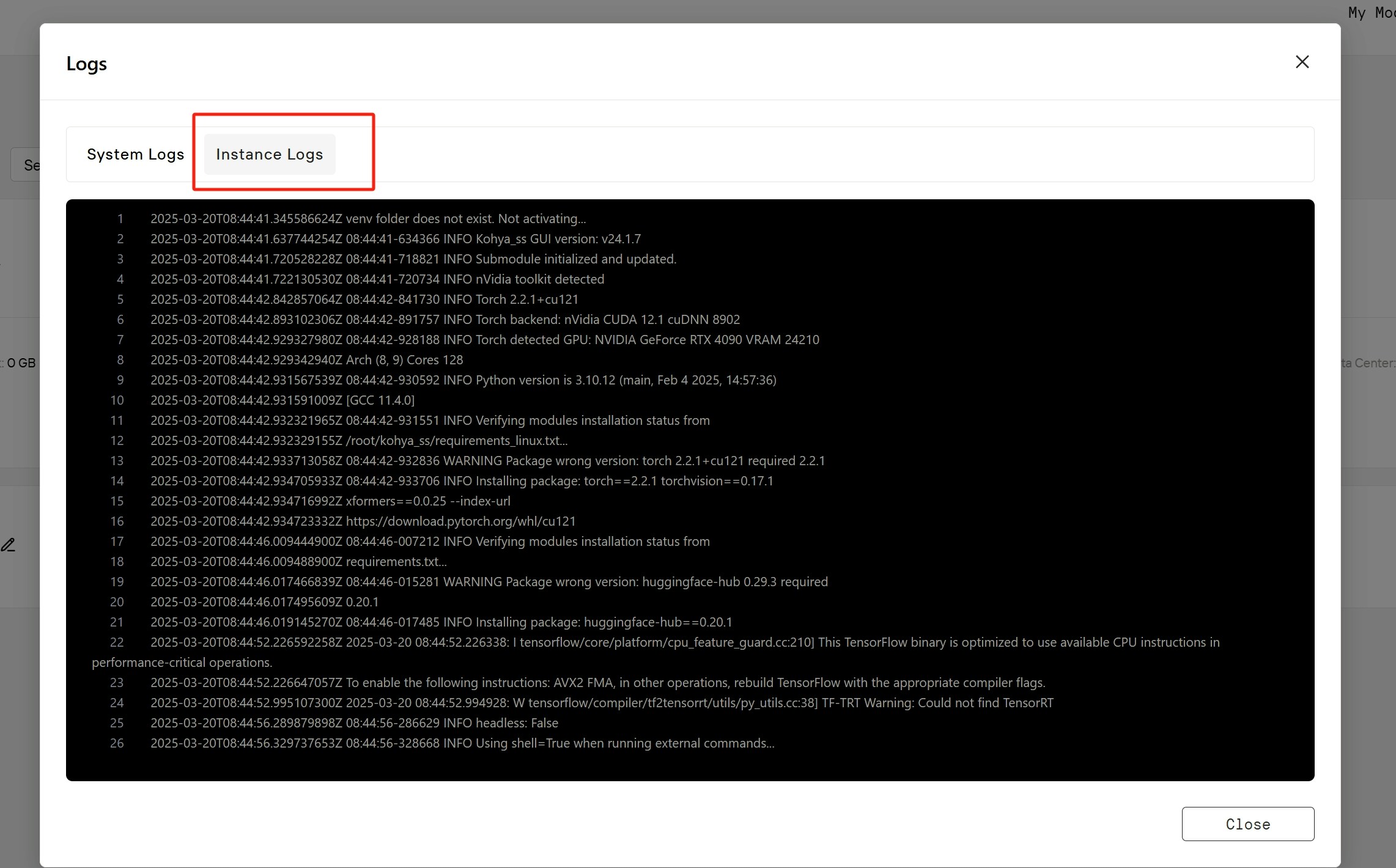
### 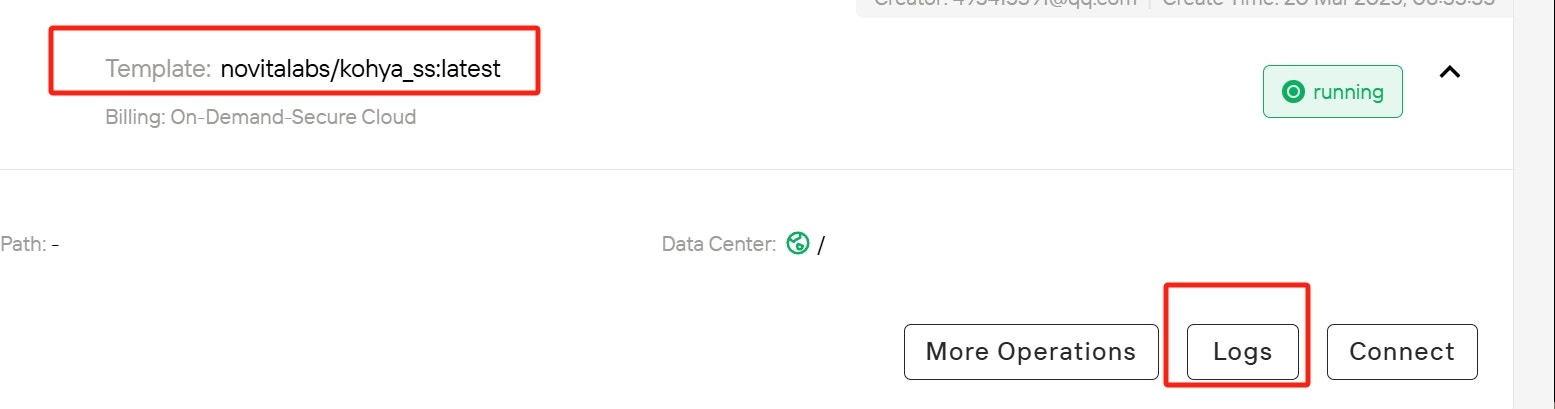 Step 7: Check Instance Logs
* Click the `Logs` button on your instance and select `Instance Logs` from the available options.
* Observe the Kohya\_ss service startup process in the logs and wait for confirmation that all services have loaded successfully.
###
Step 7: Check Instance Logs
* Click the `Logs` button on your instance and select `Instance Logs` from the available options.
* Observe the Kohya\_ss service startup process in the logs and wait for confirmation that all services have loaded successfully.
###  Step 8: Connect to Your Instance
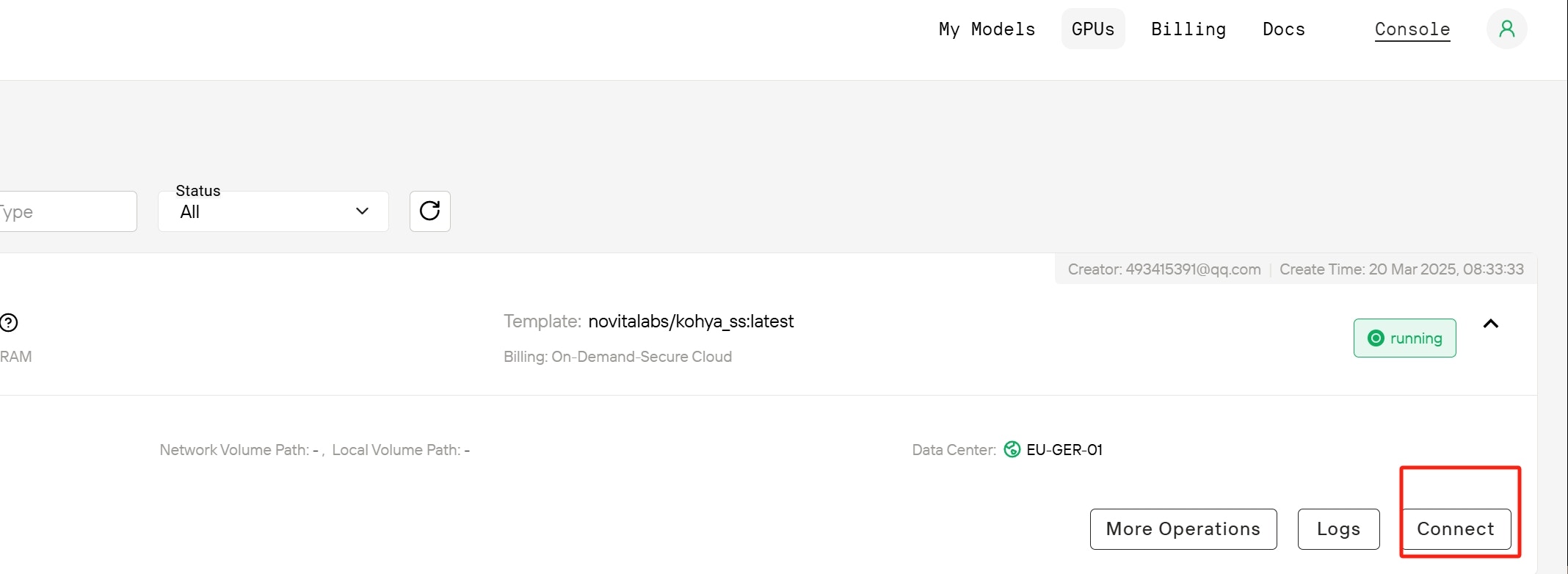
* Close the logs view when ready and click the `Connect` button to view connection options.
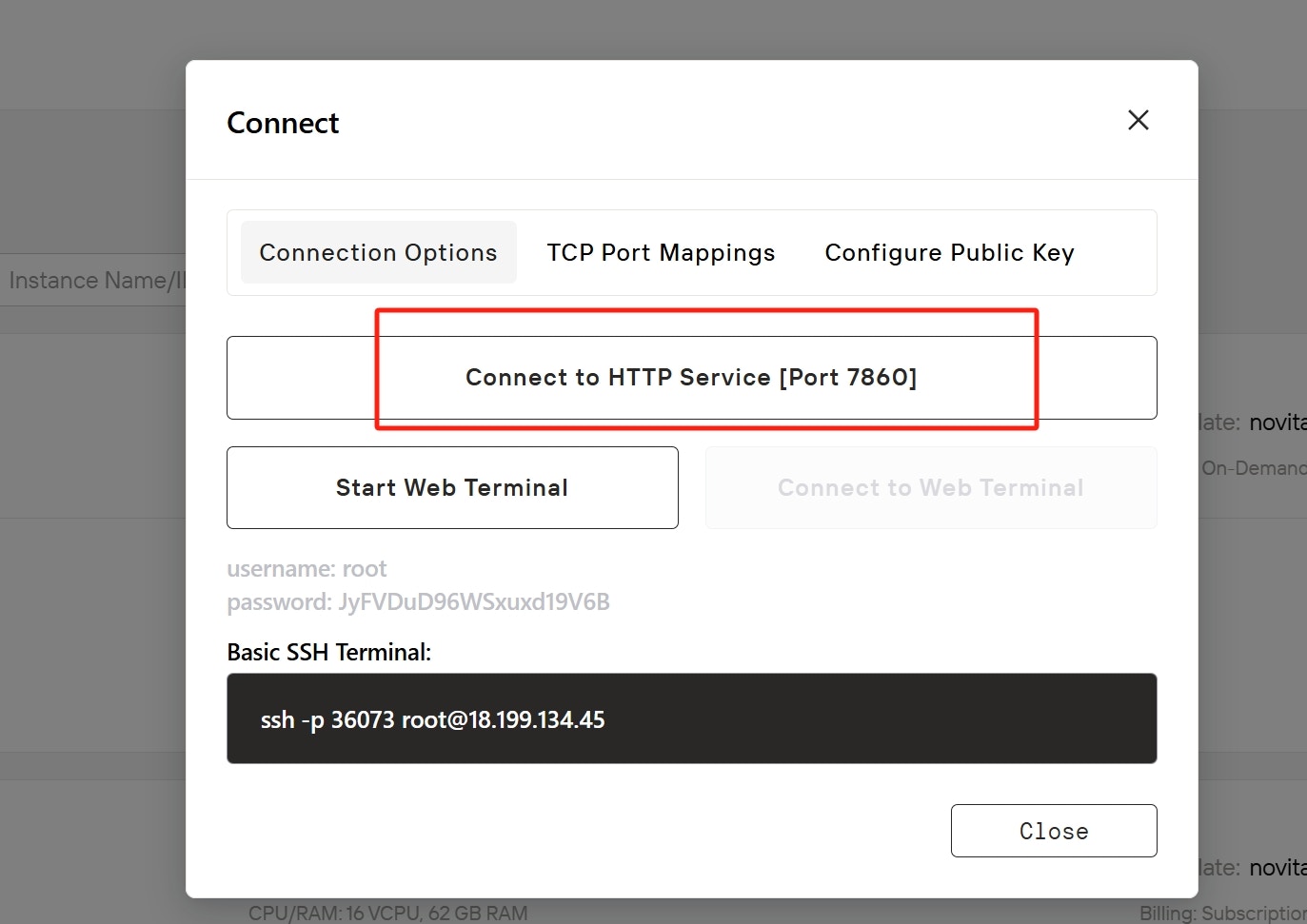
* View various connection methods: SSH, TCP, and HTTP of your instance.
* For Kohya\_SS GUI access, focus on the HTTP connection details. Therefore, in the Connection Options section, click `Connect to HTTP Service` and access to a new browser tab or window.
###
Step 8: Connect to Your Instance
* Close the logs view when ready and click the `Connect` button to view connection options.
* View various connection methods: SSH, TCP, and HTTP of your instance.
* For Kohya\_SS GUI access, focus on the HTTP connection details. Therefore, in the Connection Options section, click `Connect to HTTP Service` and access to a new browser tab or window.
### 
 Step 9: Begin Using Your Instance
* Allow a few moments for the web interface to fully load and get ready to run Kohya\_ss:GUI on Novita AI.
Step 9: Begin Using Your Instance
* Allow a few moments for the web interface to fully load and get ready to run Kohya\_ss:GUI on Novita AI.