> ## Documentation Index
> Fetch the complete documentation index at: https://novita.ai/docs/llms.txt
> Use this file to discover all available pages before exploring further.
# Cursor
> Learn how to integrate your Novita AI API keys with Cursor to unlock powerful AI models for programming. Get step-by-step instructions for seamless setup.
This guide will walk you through the steps needed to integrate Novita AI's models with Cursor. Using your own API keys, you can leverage Novita AI's large language models (LLMs) for custom AI messages in Cursor. This integration ensures that you can run AI-powered conversations and interactions while keeping full control over your API usage and cost.
## What is Cursor?
Cursor is a code editor built for programming with AI. It integrates with multiple large language models (LLMs) and allows you to input your own API keys, giving you full control over AI usage and costs. Whether you're coding or interacting with AI, Cursor streamlines the experience with features like smart autocomplete, auto-suggestions, and multi-model support, all within your development environment.
## Prerequisites
Before you begin the integration, ensure you have the following:
### **Novita AI LLM API Key**
* **Create an account**: Visit [Novita AI's website](https://novita.ai/) and sign up for an account.
* **Generate your API Key**: After logging in, navigate to the [Key Management](https://novita.ai/settings/key-management) page to generate your API key. This key is essential to connect Novita AI's models to Cursor.

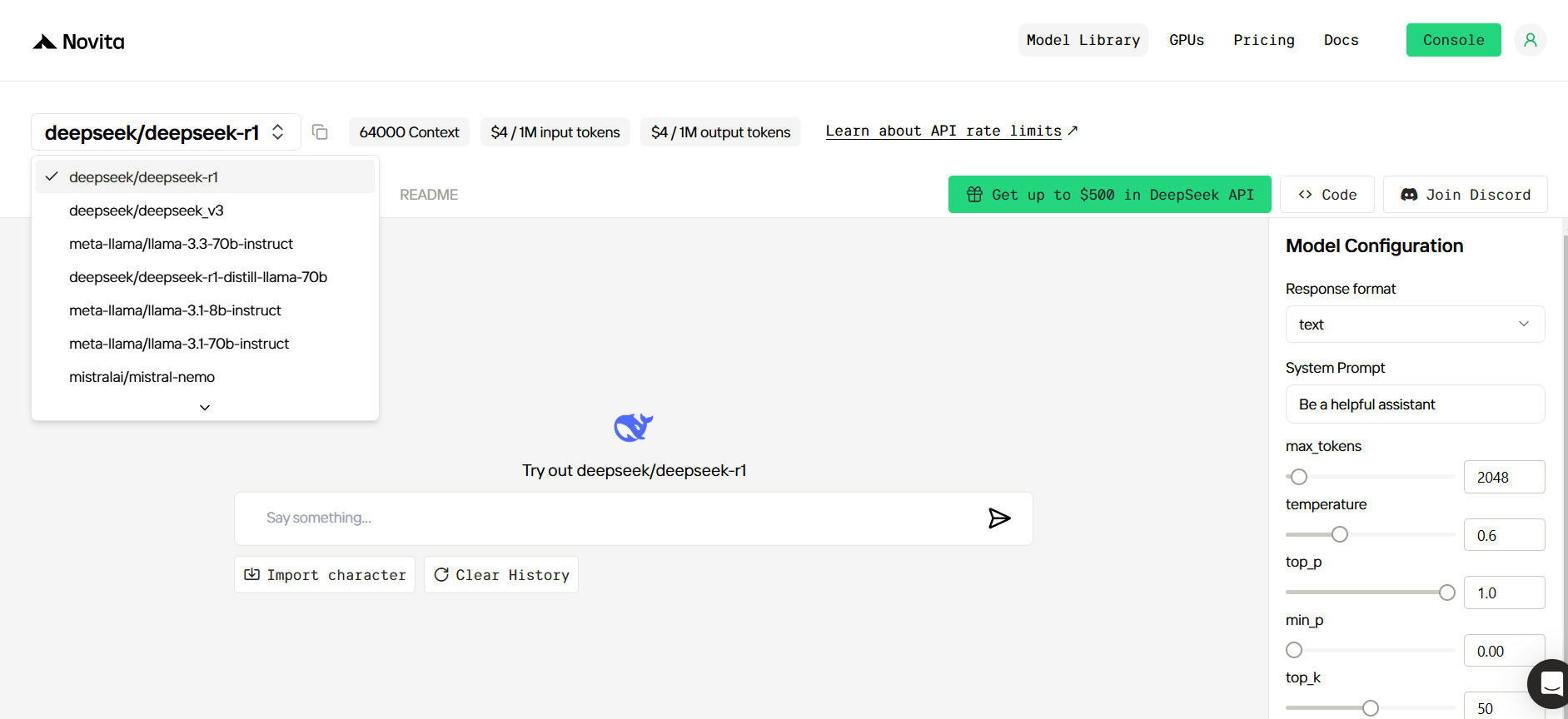
* **Select a Model Name**: You'll need to copy the model name you want to use from Novita AI's [Model Library](https://novita.ai/models/llm/deepseek-deepseek-r1). Some available models include:
* `deepseek/deepseek-r1`
* `deepseek/deepseek-v3`
* `deepseek/deepseek-r1-distill-llama-70b`
* `deepseek/deepseek-r1-distill-llama-8b`
 ### **Download the Cursor App**
* Go to the official [Cursor website](https://cursor.com/) and download the Cursor app.
* Download Cursor App from [official website](https://cursor.com/)
## Integration Steps
### Connect Novita AI to Cursor
* Open the **Cursor App** and go to **Settings**.
* Navigate to the **Models** section.
* Uncheck all the other models that are pre-configured in Cursor.
* In the **Model Name** field, paste the model name you copied from the **Novita AI Model Library** (e.g., `deepseek/deepseek-r1`).
* Enter your **Novita AI API key** in the designated field.
* Click the **Verify** button to ensure your API key is correct. Once validated, the API key will be activated.
* In the **Open AI Base URL** field, override the default URL with the Novita AI endpoint:[`https://api.novita.ai/openai`](https://api.novita.ai/openai)
By following these steps, you'll link your Novita AI API key with the Cursor app, enabling you to use Novita AI's models through CursorStart a Chat with AI in Cursor.
### Start a Chat with AI in Cursor
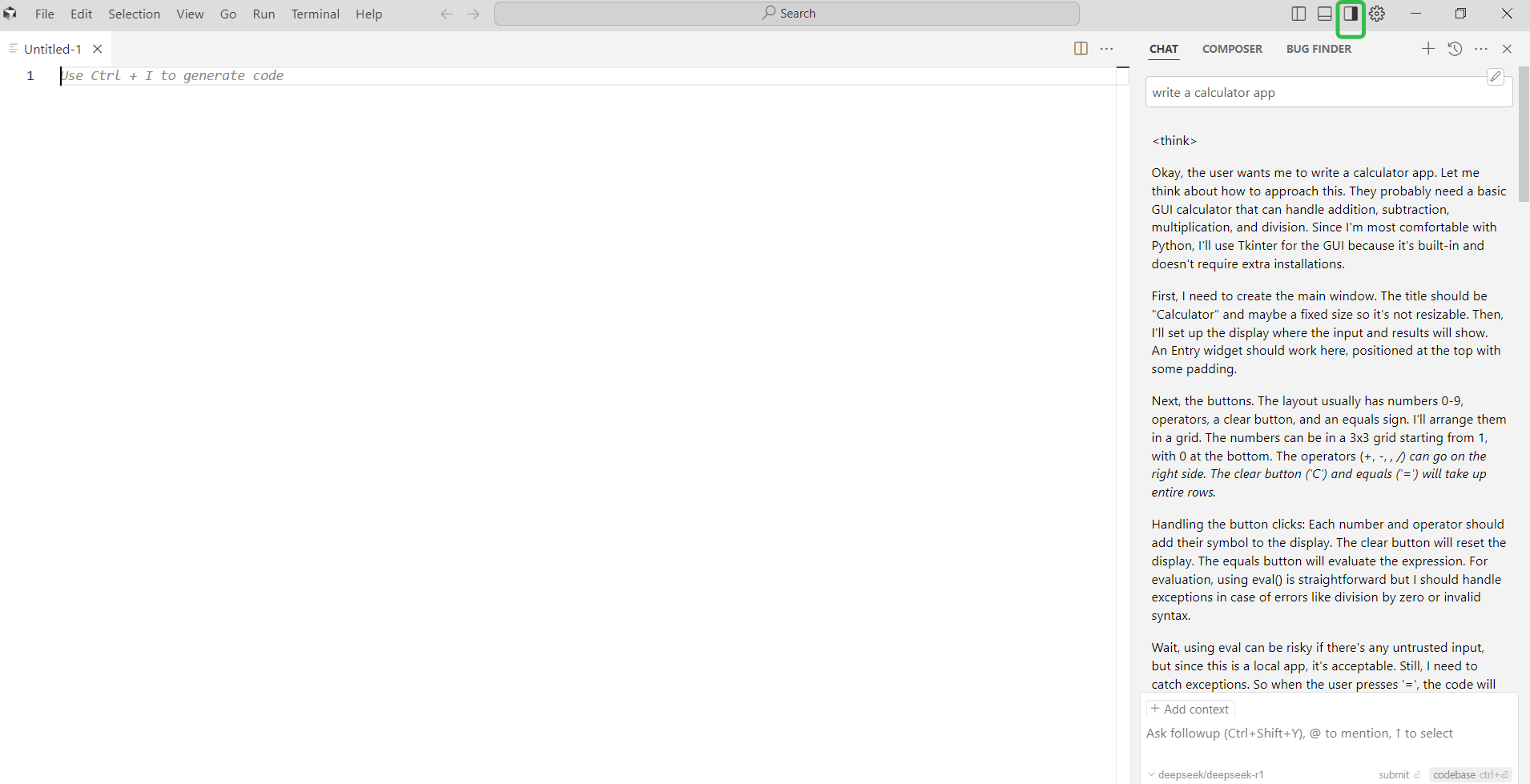
To open the **Chat** interface, either:
* Click on **Toggle AI Pane**, or
* Press the keyboard shortcut **Ctrl + Alt + B** to start a new chat.
You can now send prompts and interact with the models you've added.
### **Download the Cursor App**
* Go to the official [Cursor website](https://cursor.com/) and download the Cursor app.
* Download Cursor App from [official website](https://cursor.com/)
## Integration Steps
### Connect Novita AI to Cursor
* Open the **Cursor App** and go to **Settings**.
* Navigate to the **Models** section.
* Uncheck all the other models that are pre-configured in Cursor.
* In the **Model Name** field, paste the model name you copied from the **Novita AI Model Library** (e.g., `deepseek/deepseek-r1`).
* Enter your **Novita AI API key** in the designated field.
* Click the **Verify** button to ensure your API key is correct. Once validated, the API key will be activated.
* In the **Open AI Base URL** field, override the default URL with the Novita AI endpoint:[`https://api.novita.ai/openai`](https://api.novita.ai/openai)
By following these steps, you'll link your Novita AI API key with the Cursor app, enabling you to use Novita AI's models through CursorStart a Chat with AI in Cursor.
### Start a Chat with AI in Cursor
To open the **Chat** interface, either:
* Click on **Toggle AI Pane**, or
* Press the keyboard shortcut **Ctrl + Alt + B** to start a new chat.
You can now send prompts and interact with the models you've added.
 ## Notes on Cursor Features
* **Tab Completion, Apply from Chat, and Composer**: These features require specialized models and will not work with custom API keys. If you wish to use these specific features, consider switching to the default models provided by Cursor.
## Notes on Cursor Features
* **Tab Completion, Apply from Chat, and Composer**: These features require specialized models and will not work with custom API keys. If you wish to use these specific features, consider switching to the default models provided by Cursor.