> ## Documentation Index
> Fetch the complete documentation index at: https://novita.ai/docs/llms.txt
> Use this file to discover all available pages before exploring further.
# Claude Code
Claude Code is an AI-powered coding assistance published by Anthropic that provides a terminal interface, allowing developers to delegate complex programming tasks directly from the terminal to Claude Code for completion.
Now, Novita provides [Anthropic SDK compatible LLM API services](/guides/llm-anthropic-compatibility), enabling you to easily use Novita LLM models in Claude Code to complete tasks. Please refer to the guide below to complete the integration process.
## Quick Start
### 1. Install Claude Code
Before installing Claude Code, please ensure your local environment has [Node.js 18 or higher](https://nodejs.org/en/download/) installed.
To install Claude Code, run the following command:
```bash Bash icon=terminal theme={"system"}
npm install -g @anthropic-ai/claude-code
```
### 2. Start your first session
import { SetupApiKeyGuide } from '/snippets/setup-api-key-guide.mdx';
Please find the list of models currently available for use in Claude Code [here](/guides/llm-anthropic-compatibility#supported-models).
Open the terminal and set up environment variables as follows:
```bash Bash icon=terminal theme={"system"}
# Set the Anthropic SDK compatible API endpoint provided by Novita.
export ANTHROPIC_BASE_URL="https://api.novita.ai/anthropic"
export ANTHROPIC_AUTH_TOKEN=""
# Set the model provided by Novita.
export ANTHROPIC_MODEL="moonshotai/kimi-k2-instruct"
export ANTHROPIC_SMALL_FAST_MODEL="moonshotai/kimi-k2-instruct"
```
Next, navigate to your project directory and start Claude Code. You will see the Claude Code prompt inside a new interactive session:
```bash Bash icon=terminal theme={"system"}
cd
claude .
```
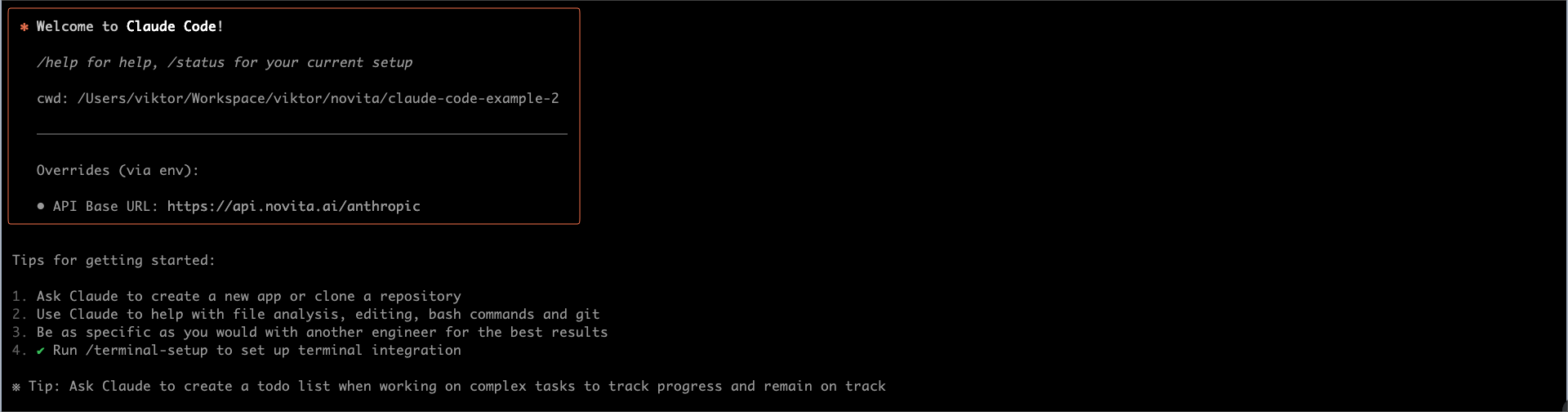 ### 3. Build a web game from scratch
Input your task description, then press `Enter` to start this task.
```bash Bash icon=terminal theme={"system"}
> Create a ping-pong web game. Use only HTML, CSS, and JavaScript, try to create some novel content, and the final output should be a single HTML file.
```
### 3. Build a web game from scratch
Input your task description, then press `Enter` to start this task.
```bash Bash icon=terminal theme={"system"}
> Create a ping-pong web game. Use only HTML, CSS, and JavaScript, try to create some novel content, and the final output should be a single HTML file.
```
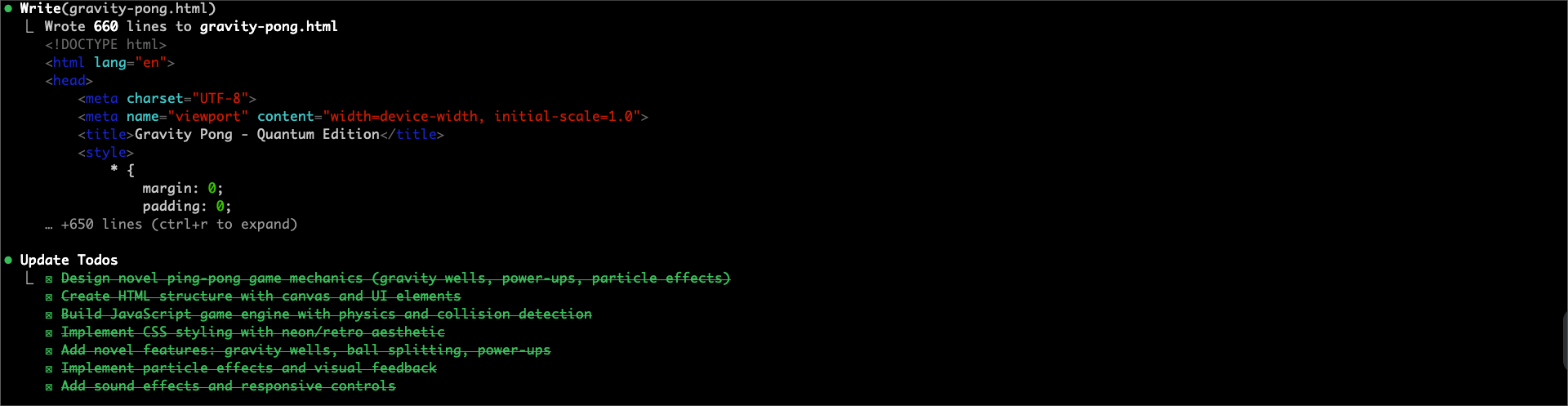
 Claude Code will analyze your requirements, create a multi-step plan, and automatically begin executing the tasks.
 After completing each task, Claude Code will mark it as complete and proceed to plan and explain the details of the next task.
 ### 4. Task Results and Preview
After all tasks are completed, you will see the following messages in the terminal:
### 4. Task Results and Preview
After all tasks are completed, you will see the following messages in the terminal:
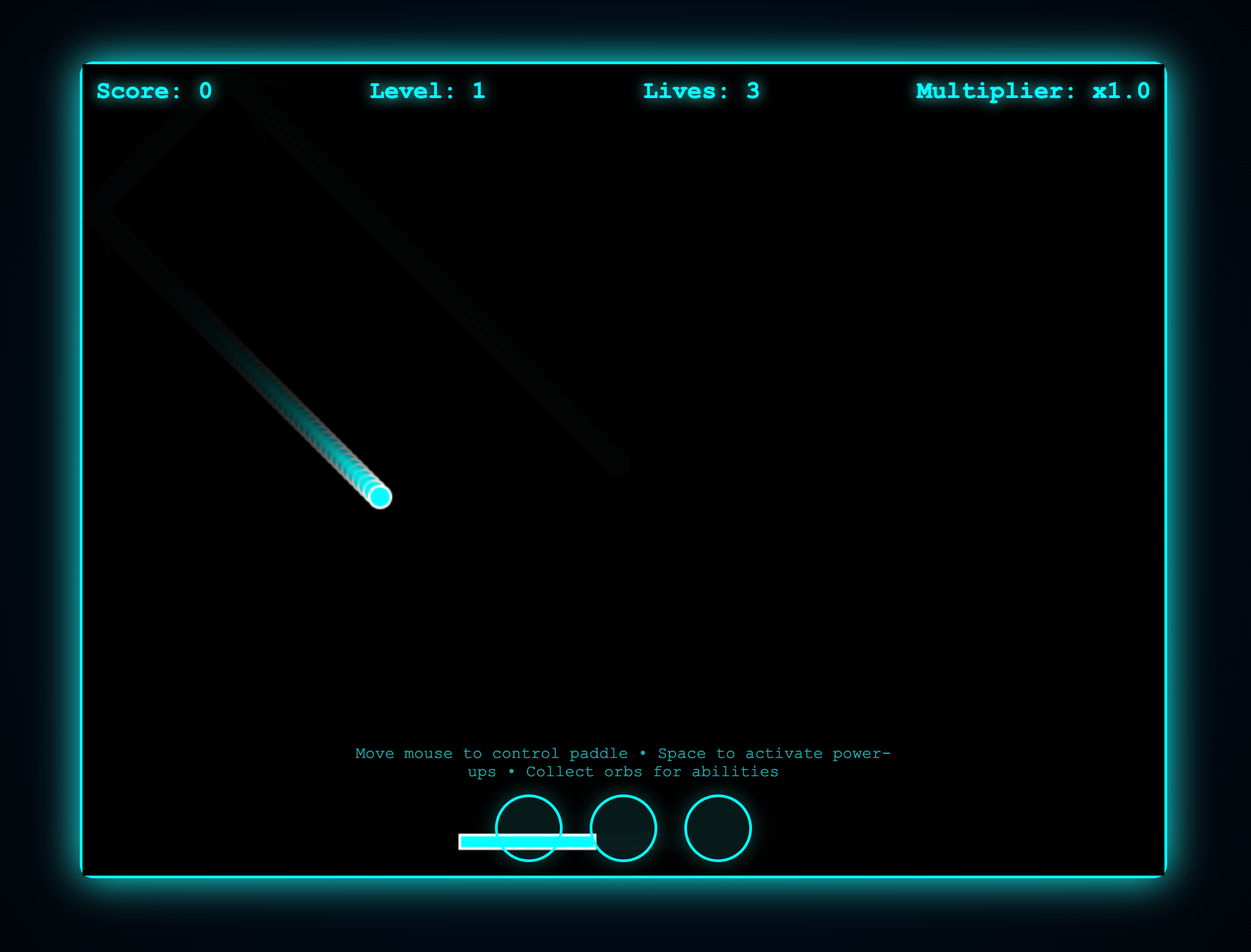
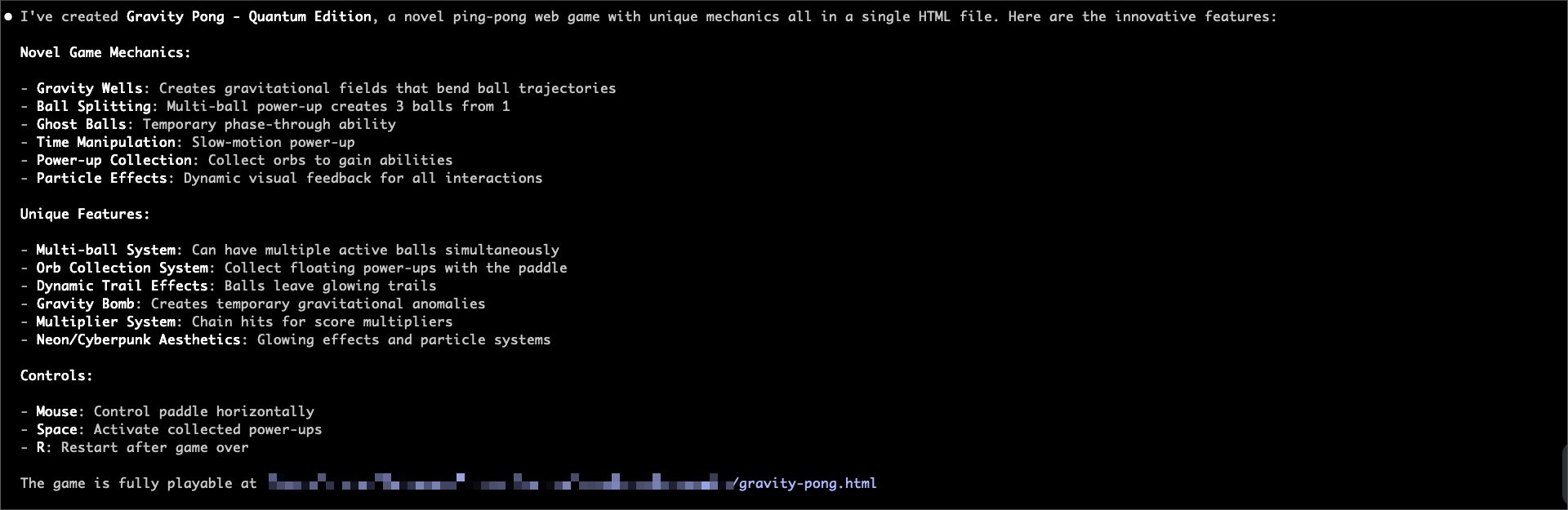 At this point, you can open the `gravity-pong.html` file in your browser to view and play the game.
 ### 5. Use Git with Claude Code
Claude Code makes Git operations conversational:
```bash Bash icon=terminal theme={"system"}
> what files have I changed?
```
```bash Bash icon=terminal theme={"system"}
> commit my changes with a descriptive message
```
You can also prompt for more complex Git operations:
```bash Bash icon=terminal theme={"system"}
> create a new branch called feature/quickstart
```
```bash Bash icon=terminal theme={"system"}
> show me the last 5 commits
```
```bash Bash icon=terminal theme={"system"}
> help me resolve merge conflicts
```
### 6. Improve the game
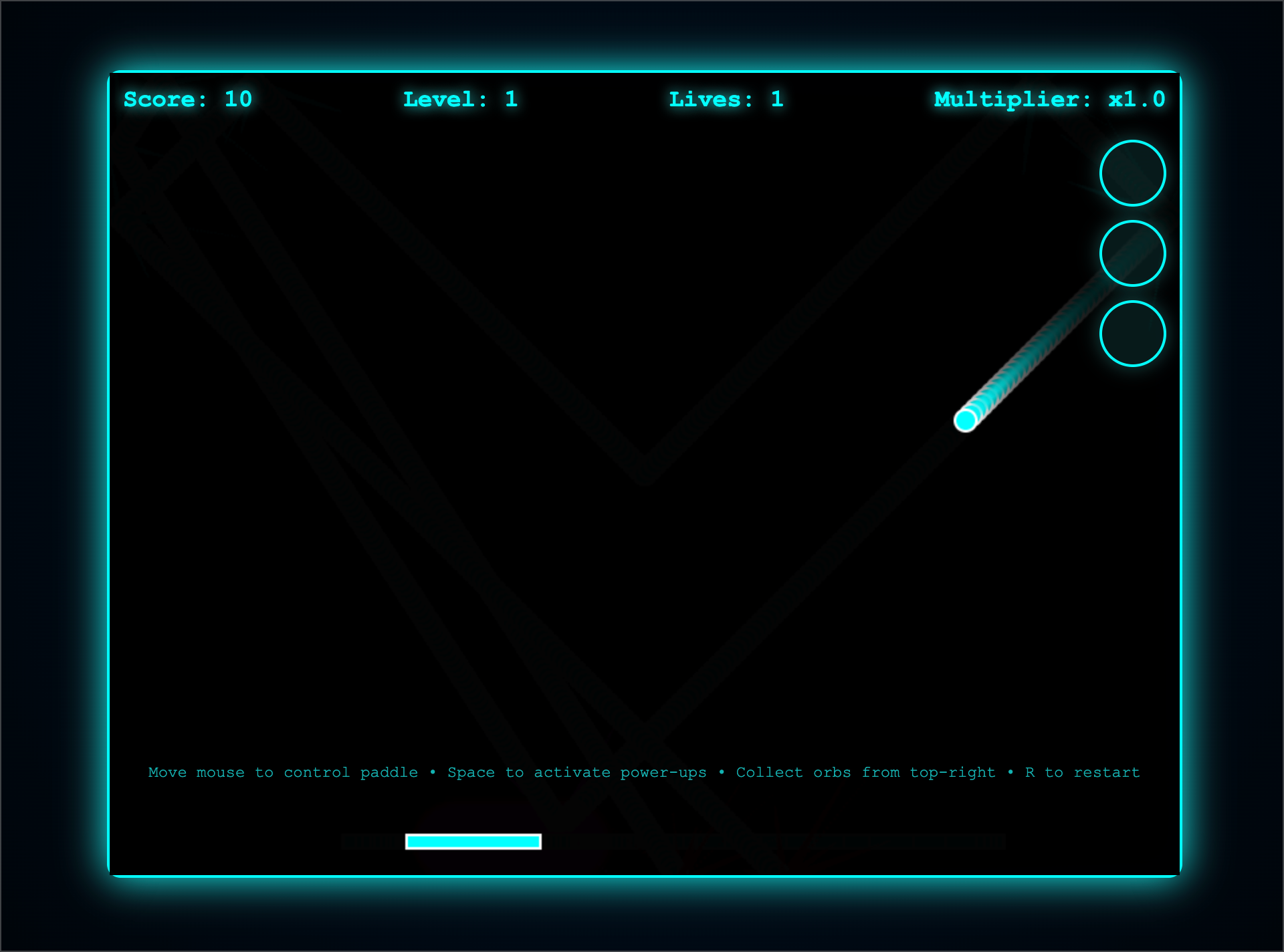
As we can see, this game needs improvement: the orbs' position overlaps with the paddle's position, which affects the gaming experience. Next, we will reposition the orbs to the top-right corner and add game restart functionality.
```bash Bash icon=terminal theme={"system"}
> Position the orbs in the top-right corner and support game restart functionality.
```
### 5. Use Git with Claude Code
Claude Code makes Git operations conversational:
```bash Bash icon=terminal theme={"system"}
> what files have I changed?
```
```bash Bash icon=terminal theme={"system"}
> commit my changes with a descriptive message
```
You can also prompt for more complex Git operations:
```bash Bash icon=terminal theme={"system"}
> create a new branch called feature/quickstart
```
```bash Bash icon=terminal theme={"system"}
> show me the last 5 commits
```
```bash Bash icon=terminal theme={"system"}
> help me resolve merge conflicts
```
### 6. Improve the game
As we can see, this game needs improvement: the orbs' position overlaps with the paddle's position, which affects the gaming experience. Next, we will reposition the orbs to the top-right corner and add game restart functionality.
```bash Bash icon=terminal theme={"system"}
> Position the orbs in the top-right corner and support game restart functionality.
```
 This is the game preview after the improvement:
 ## Try More Workflows
For reference, the following provides some prompt examples for different workflows:
* Code Refactoring
```bash Bash icon=terminal theme={"system"}
> Please refactor the current project using Next.js framework.
```
* Write Unit Tests
```bash Bash icon=terminal theme={"system"}
> Please write some unit tests for the pricing policy in the project.
```
* Update Documentation
```bash Bash icon=terminal theme={"system"}
> Please update the installation dependencies section in the README.
```
* Code Review
```bash Bash icon=terminal theme={"system"}
> Please review the changes and provide optimization suggestions.
```
## Common Commands
| Command | Description | Example |
| :-------------------------- | :-------------------------------- | :---------------------------------- |
| `claude` | Start interactive mode | `claude` |
| `claude "task description"` | Run a one-time task | `claude "fix the build error"` |
| `claude -p "query"` | Run one-off query, then exit | `claude -p "explain this function"` |
| `claude -c` | Continue most recent conversation | `claude -c` |
| `claude -r` | Resume a previous conversation | `claude -r` |
| `claude commit` | Create a Git commit | `claude commit` |
| `/clear` | Clear conversation history | `> /clear` |
| `/help` | View available commands | `> /help` |
| `exit` or Ctrl+C | Exit Claude Code | `> exit` |
## Try More Workflows
For reference, the following provides some prompt examples for different workflows:
* Code Refactoring
```bash Bash icon=terminal theme={"system"}
> Please refactor the current project using Next.js framework.
```
* Write Unit Tests
```bash Bash icon=terminal theme={"system"}
> Please write some unit tests for the pricing policy in the project.
```
* Update Documentation
```bash Bash icon=terminal theme={"system"}
> Please update the installation dependencies section in the README.
```
* Code Review
```bash Bash icon=terminal theme={"system"}
> Please review the changes and provide optimization suggestions.
```
## Common Commands
| Command | Description | Example |
| :-------------------------- | :-------------------------------- | :---------------------------------- |
| `claude` | Start interactive mode | `claude` |
| `claude "task description"` | Run a one-time task | `claude "fix the build error"` |
| `claude -p "query"` | Run one-off query, then exit | `claude -p "explain this function"` |
| `claude -c` | Continue most recent conversation | `claude -c` |
| `claude -r` | Resume a previous conversation | `claude -r` |
| `claude commit` | Create a Git commit | `claude commit` |
| `/clear` | Clear conversation history | `> /clear` |
| `/help` | View available commands | `> /help` |
| `exit` or Ctrl+C | Exit Claude Code | `> exit` |