> ## Documentation Index
> Fetch the complete documentation index at: https://novita.ai/docs/llms.txt
> Use this file to discover all available pages before exploring further.
# Automatic Top-Up
When you enable **"Automatic Top-Up"**, your account will automatically add credit if the balance falls below a specified threshold. Please follow the steps below to set up this feature:
### 1. Enable Automatic Top-Up
Go to Payment Methods in the console.
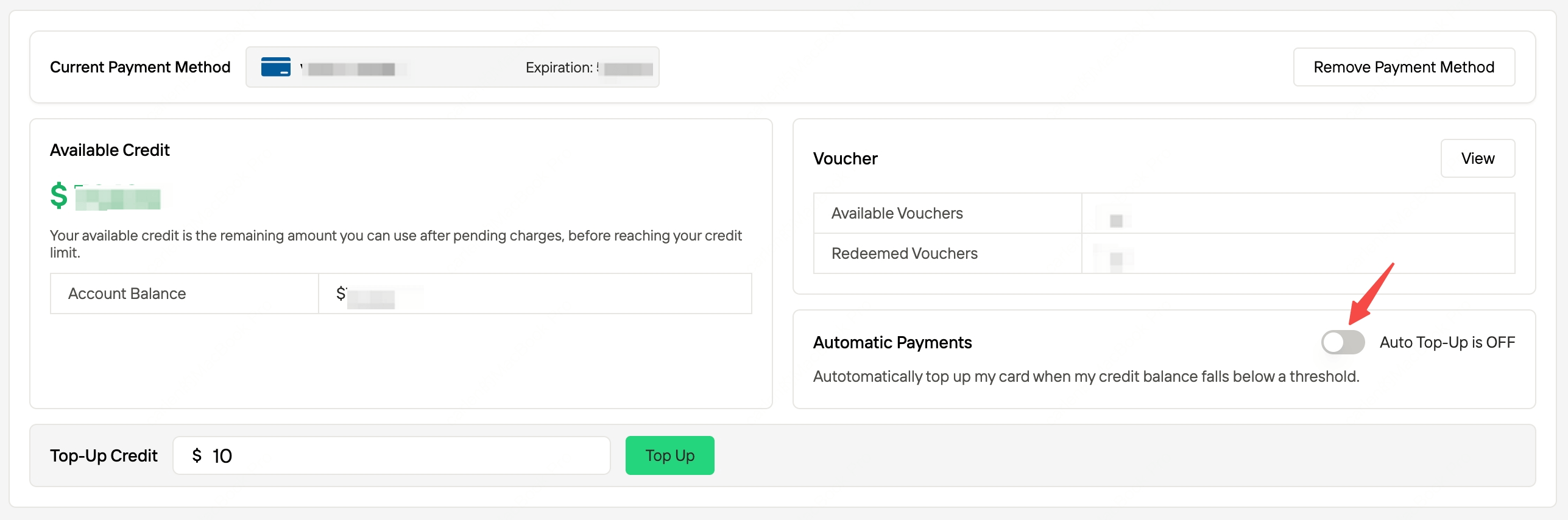 If you don't have a payment method, click **"Add payment method"**. You'll be redirected to Stripe's secure page to add one, and we do not store any payment information.
### 2. Automatic Top-Up Settings
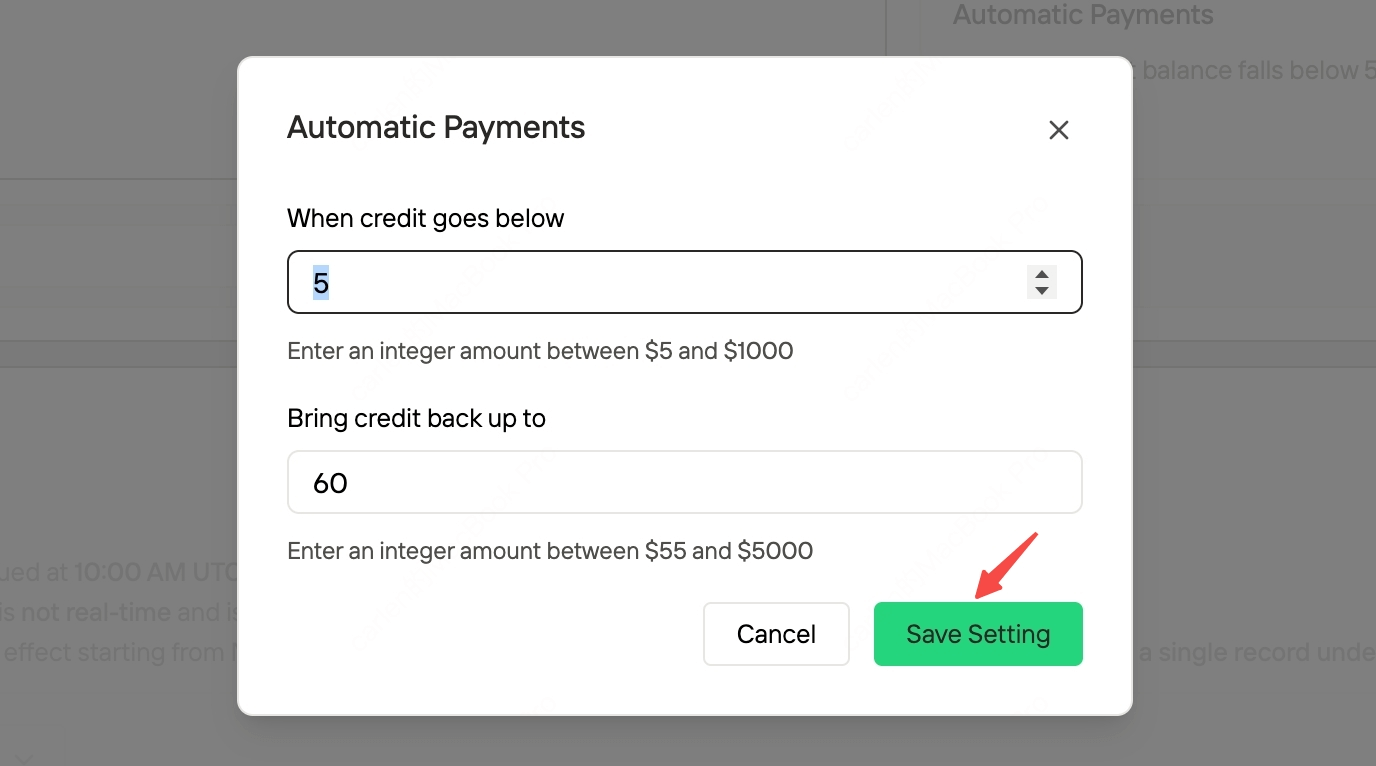
After you turn on the **"Automatic Payments"** switch, a configuration popup will appear automatically.
Set valid values for **"When credit goes below"** and **"Bring credit back up to"**, then click **"Save settings"** to complete the process.
If you don't have a payment method, click **"Add payment method"**. You'll be redirected to Stripe's secure page to add one, and we do not store any payment information.
### 2. Automatic Top-Up Settings
After you turn on the **"Automatic Payments"** switch, a configuration popup will appear automatically.
Set valid values for **"When credit goes below"** and **"Bring credit back up to"**, then click **"Save settings"** to complete the process.